Run a signal group? Connect your Telegram workflow and send members clean trade details. Following a group? Connect MT4/MT5 once, then review each trade and choose your own risk.
🔒 CHOOSE THE PATH THAT MATCHES YOU
Admins publish trade ideas. Members decide whether to trade and how much risk to take.
How It Works
Signal AdminSet up the group and create a trade idea.
Send ItShare a clean trade card in Telegram.
VIP MemberConnect your own MT4/MT5.
Review & TradeCheck the trade, choose risk and confirm.
ℹ️ Advanced details & terminology
Provider = signal admin. Follower = member. Pairing = connecting Telegram/FXVNPro to the correct account or terminal.
NO EMAIL/PASSWORDNO BROKER PASSWORDONE-TIME connectionMT4 + MT5Member CONTROLS RISK
Important distinction
Adding the bot to a Telegram group and connecting that group to an FXVN Trader ID are two different things. You may prepare the group and add the bot first. The secure FXVN group connection is completed later, after the Signal Admin has connected a Trader ID and has PRO access.
A · Prepare Telegram
Open the bot, prepare the VIP group, make sure the Signal Admin is group admin.
B · Connect Signal Admin
Create/restore Trader ID, save Recovery Code, activate PRO.
Tap Open @FXVNPro_Lab_bot. In Telegram, press START once. If Telegram shows an old conversation, simply send /start.
✓ What you should seeThe private chat with FXVNPro_Lab opens and the bot responds.
If this does not happenMake sure the username is exactly @FXVNPro_Lab_bot. Do not use a forwarded bot account or a look-alike username.
02
Create or open your VIP Telegram group
If you already have a VIP group, open it. If not, create a new Telegram group for your members. Use a clear name such as Gold Daily Signals VIP.
✓ What you should seeYou can open the group and see yourself as an administrator.
03
Add @FXVNPro_Lab_bot to the VIP group
Open the group → tap the group name → Add Members → search @FXVNPro_Lab_bot → add it. For the simplest setup, allow the bot to post messages. The Signal Admin account itself should remain a group administrator.
Do not confuse this step with FXVN connection. The bot can physically be inside the group now, but FXVN has not yet securely linked this group to your Trader ID.
✓ What you should seeFXVNPro_Lab appears in the group member list.
PART 1 · CONNECT Signal Admin IDENTITY · ONE TIME
Connect Telegram to FXVNPro
Now return to the private bot chat. The next link belongs to the Signal Admin’s Telegram account and should not be forwarded to anyone.
04
Return to the bot and send /start
In the private chat with @FXVNPro_Lab_bot, send:
/start
If this Telegram account has never been connected, the bot should show NOT CONNECTED and provide a secure FXVNPro connection link.
✓ What you should seeStatus shows NOT CONNECTED and a one-time FXVNPro link is available.
If this does not happenIf it already shows CONNECTED, this Telegram account already has a Trader ID. Do not create a second identity unless you intentionally want a new Signal Admin.
05
Open the secure FXVNPro connect link
Tap the link directly from the bot message. It opens the FXVNPro website. The link is short-lived, so complete this step immediately.
SecurityNever copy this private connection URL into a public group or screenshot it for customers.
✓ What you should seeFXVNPro shows the Connect Telegram page with options to create or restore a Trader ID.
06
Create a new Trader ID — or restore your existing one
New Signal Admin: choose Create my FXVN Trader ID and enter the public trader name you want customers to see. Existing Signal Admin: use your private Recovery Code to restore the existing identity.
✓ What you should seeFXVNPro creates/restores the Trader ID and displays the Signal Admin identity.
07
Save the Recovery Code privately
When a new identity is created, FXVNPro shows a one-time Recovery Code. Save it in a password manager or another private location.
Never shareRecovery Code, bot token, BridgeKey, connection code or activation token.
✓ What you should seeYou have securely stored the Recovery Code before leaving the page.
08
Return to Telegram and verify CONNECTED
Go back to the private bot chat and send /start again.
✓ What you should seeThe bot now shows CONNECTED, your Trader ID and your current plan.
If this does not happenIf it still shows NOT CONNECTED, open a fresh connection link and repeat Steps 05–07.
09
Activate Signal Admin PRO
The Signal Admin needs PRO entitlement for private group routing and Smart Trade. After PRO is activated, send /start again.
✓ What you should seeThe bot shows Plan: PRO and Signal Admin commands are available.
If this does not happenIf it still shows FREE, the Signal Admin PRO membership has not been activated for this Trader ID yet.
PART 2 · SECURELY CONNECT THE VIP GROUP · ONE TIME
Bind the prepared Telegram group to this Signal Admin
The bot may already be inside the group from Step 03. This part performs the secure FXVN binding between your Telegram User ID, Trader ID and the selected group.
10
In private chat, send /group
Send:
/group
FXVN checks that this Telegram account is already connected to a Trader ID and that the Trader ID has Signal Admin PRO.
✓ What you should seeThe bot returns CONNECT TELEGRAM GROUP with the button “Add FXVNPro Bot to My Group”.
If this does not happenIf you see “Connect your Telegram account first”, go back to Part 1. If you see “Signal Admin PRO feature”, activate PRO first.
11
Select the same VIP group
Tap ➕ Add FXVNPro Bot to My Group and choose the VIP group you prepared earlier. If the bot is already a member, select that same group so FXVN can complete the secure connection token flow.
✓ What you should seeTelegram completes the group selection and FXVN can identify the group Chat ID.
12
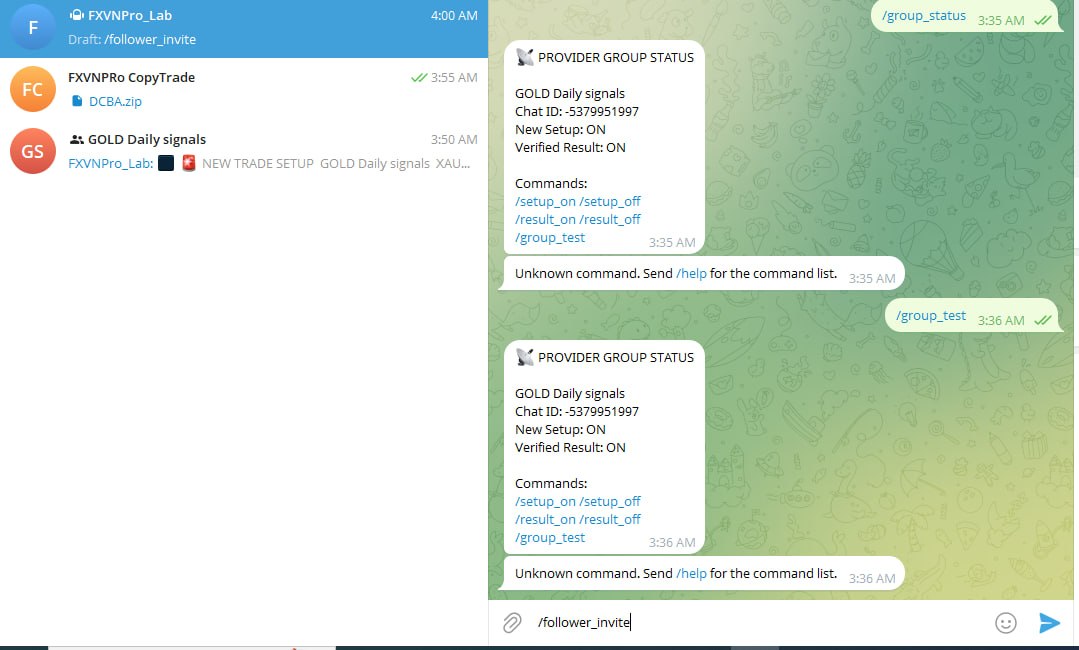
Check /group_status
Return to the private bot chat and send:
/group_status
Check the group name/Chat ID and confirm New Setup: ON.
13
Send /group_test
Send:
/group_test
Then open the VIP group and confirm the FXVNPro test message arrived.
✓ What you should seeThe VIP group receives the Signal Admin PRO test message.
If this does not happenIf the private bot says connected but the group receives nothing, confirm the bot is still a member and allowed to post.
14
Choose what the VIP group receives
For a clean VIP signal group, use:
/setup_on /result_off
This keeps new setups in Telegram while members can later open the permanent FXVNPro setup link to view verified results.
✓ What you should seeNew Setup: ON. Verified Result can be OFF for the VIP group.
PART 3 · INVITE VIP MEMBERS
Let members onboard themselves
You do not create each Member manually in WordPress. Eligible PRO Signal Admins are recognized automatically by Member Execution.
15
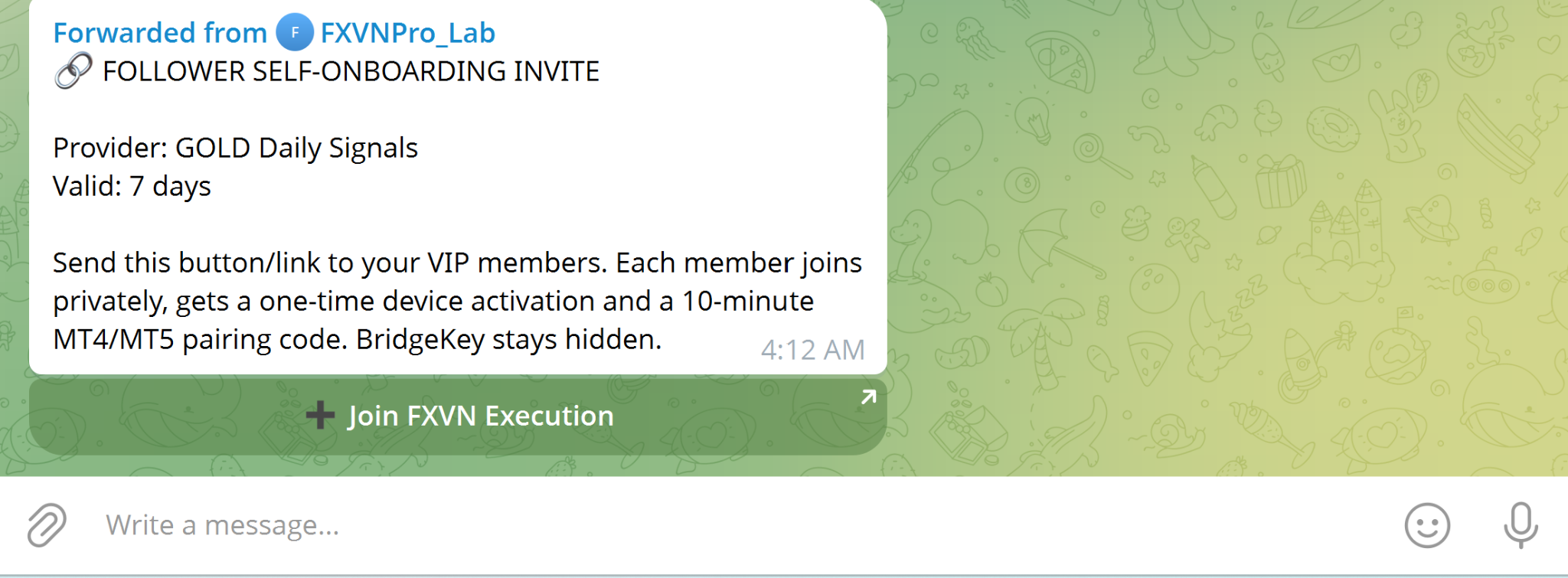
Create a VIP MEMBER invitation
In the Signal Admin’s private bot chat send:
/Member_invite
The invitation is valid for 7 days.
16
Share the Join button with VIP members
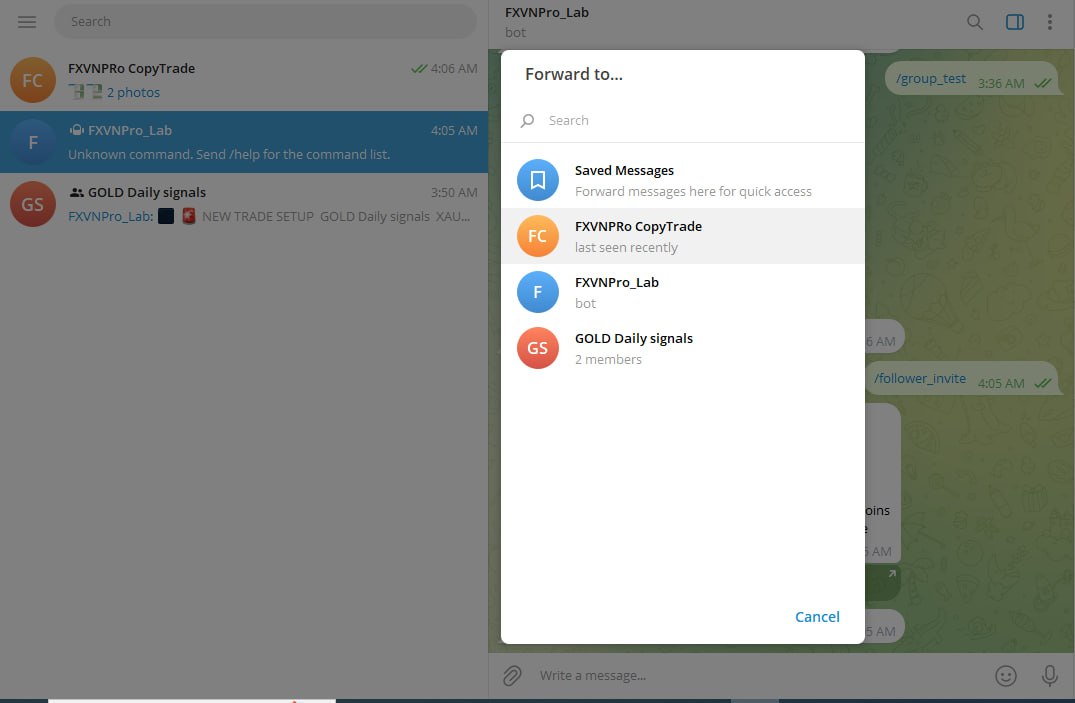
Forward the invitation or share the ➕ Join FXVN Execution button. Each VIP member should tap the invitation from their own Telegram account.
PART 4 · VIP MEMBER · ONE TIME
Join privately and connect MT4/MT5
The VIP member does not need Signal Admin PRO and does not need the Signal Admin result connector. They only need the Member Execution Bridge.
17
VIP taps Join FXVN Execution
The member taps the invitation. Telegram opens @FXVNPro_Lab_bot privately and FXVN creates a Member identity for that specific Signal Admin.
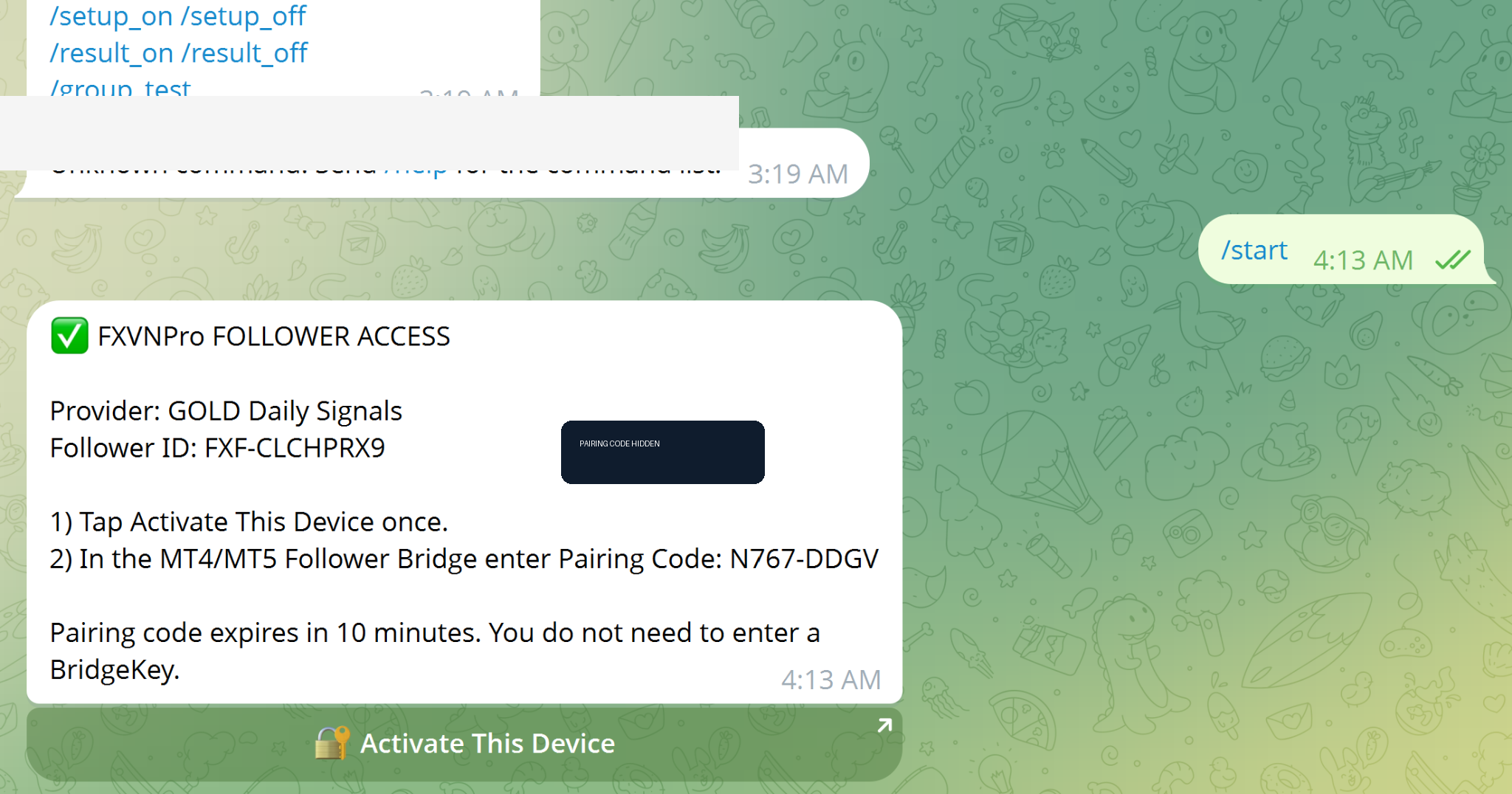
✓ What you should seeThe VIP receives FXVNPro Member ACCESS with a Member ID.
18
VIP receives connection Code + Activate Device
The bot gives the VIP a temporary 10-minute connection Code and the button 🔐 Activate This Device. No BridgeKey needs to be typed manually in the normal onboarding flow.
PrivateDo not post the connection Code in the VIP group. It is one-time and short-lived.
19
Tap Activate This Device
Tap 🔐 Activate This Device once on the phone/computer the VIP will use to open Smart Trade links.
Install: MetaTrader → File → Open Data Folder → MQL4/MQL5 → Experts → copy the downloaded Bridge file → restart MetaTrader → Navigator → Trading Programs (Expert Advisors) → attach FXVNPro Member Bridge to a chart. Enable Algo Trading/AutoTrading.
Smart Trade Bridge only. These files are for Telegram Smart Trade Member execution. They are different from the FXVNPro CopyTrade 2.0 Member EAs.
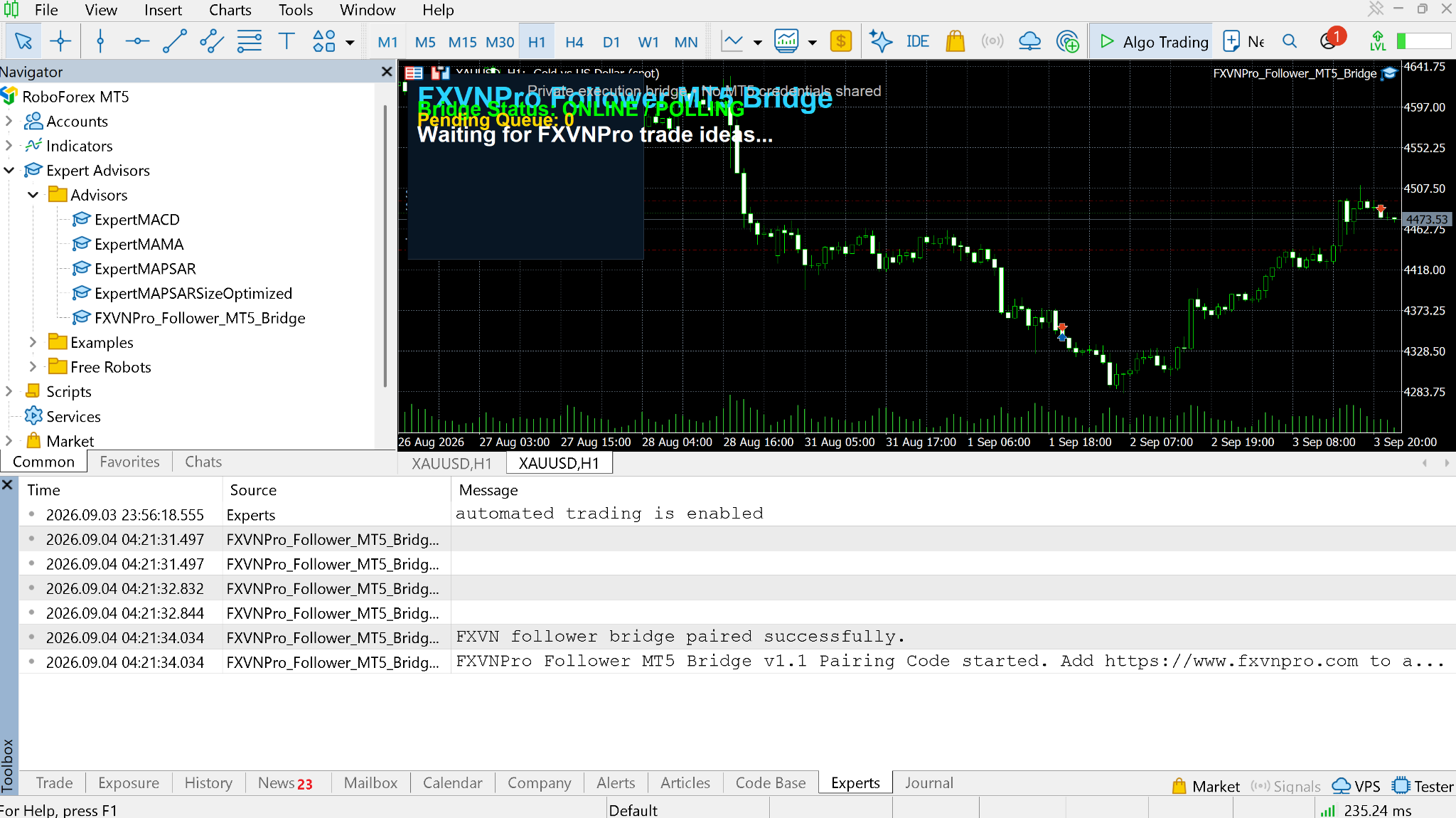
✓ What you should seeThe Member Bridge panel appears on the chart.
21
Allow FXVNPro Connection to FXVNPro
In MetaTrader go to Tools → Options → Trading Programs (Expert Advisors). Enable Allow FXVNPro Connection for listed URL and add the https://www.fxvnpro.com URL required by the bridge.
If this does not happenIf connection/polling fails even with the correct code, WebRequest permission is one of the first settings to check.
22
Enter the connection Code once
Open the EA Inputs and paste the temporary connection Code from Telegram. Do not manually type BridgeKey unless support specifically instructs you to use the legacy fallback.
✓ What you should seeThe Experts log reports that the Member bridge Connected successfully.
23
Confirm ONLINE / POLLING
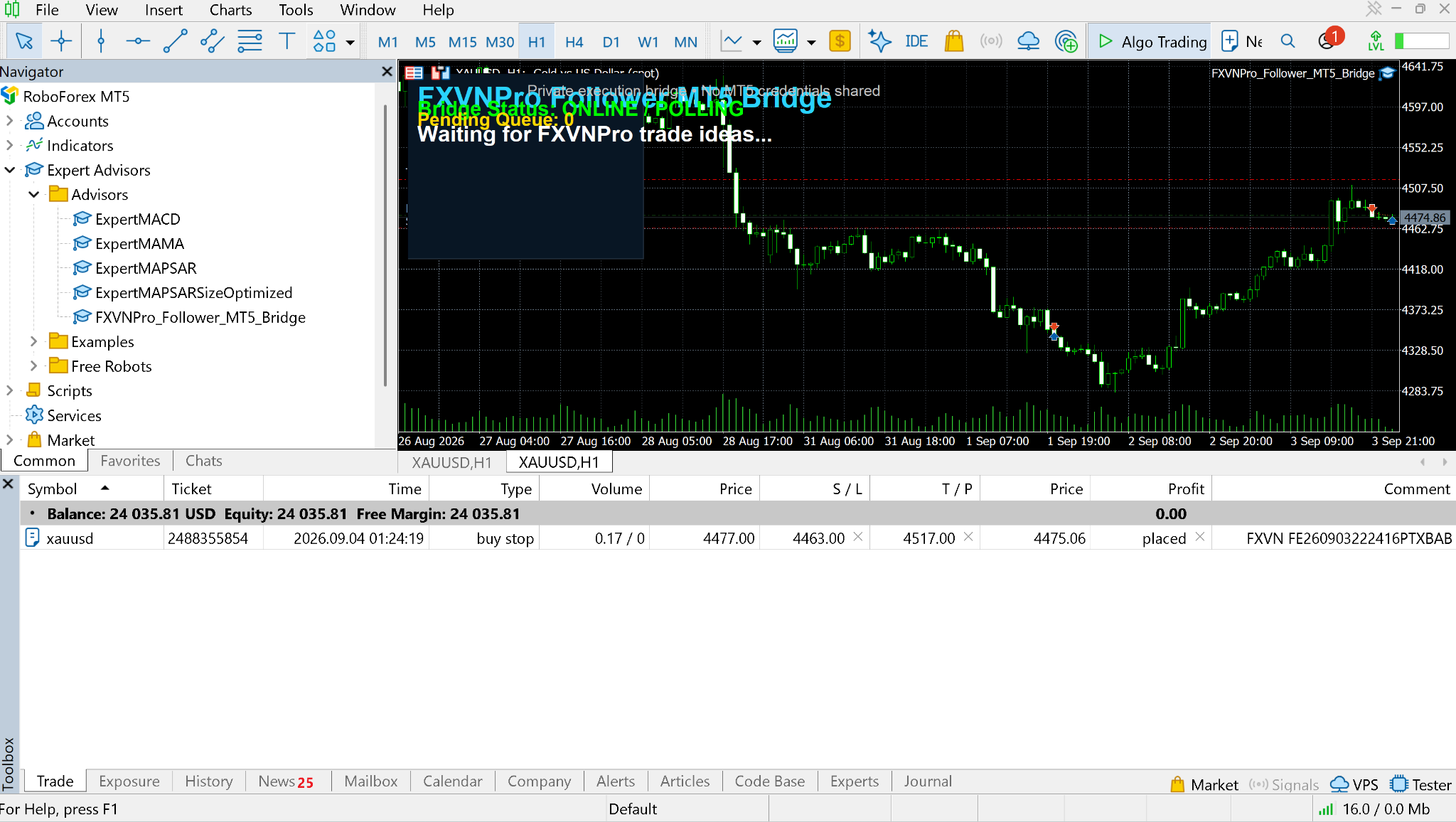
Wait a few seconds. The Member Bridge should remain connected and wait for FXVNPro trade ideas.
PART 5 · Signal Admin SENDS A TRADE · EVERY TRADE
Create the structured FXVN setup
Once onboarding is complete, the Signal Admin repeats only the trade creation step.
24
Create a setup with /trade
In the Signal Admin’s private bot chat use this format:
/trade SYMBOL BUY|SELL TIMEFRAME ENTRY SL TP1 [TP2] [TP3]
Example:
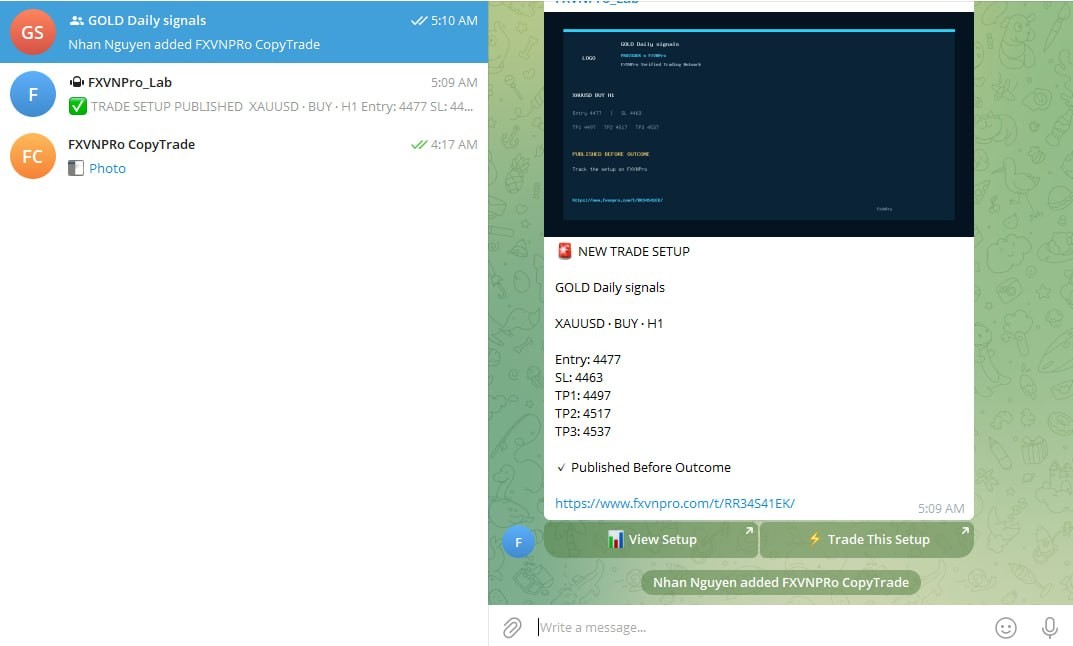
/trade XAUUSD BUY H1 4477 4463 4497 4517 4537
✓ What you should seeThe bot confirms TRADE SETUP PUBLISHED and gives a permanent FXVNPro /t/TOKEN/ link.
25
VIP group receives NEW TRADE SETUP
Signal Admin PRO automatically posts the branded setup card to the connected VIP group. Members see 📊 View Setup and ⚡ Trade This Setup.
PART 6 · VIP SMART TRADE · EVERY TRADE
From Telegram to MetaTrader without retyping levels
The VIP still confirms each trade and chooses their own Risk %.
26
Tap ⚡ Trade This Setup
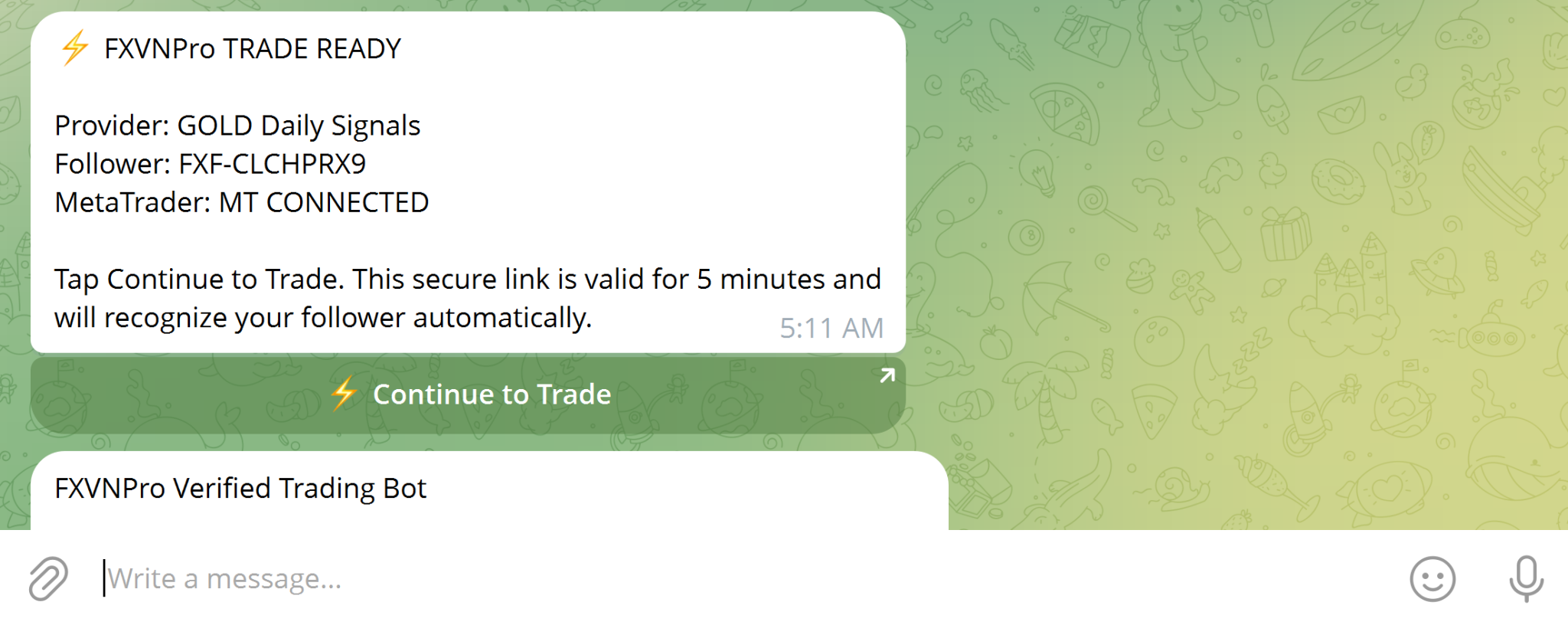
The VIP taps the trade button from the setup card. Telegram opens the bot privately and checks that this Telegram user belongs to an active Member for the Signal Admin.
✓ What you should seeThe bot shows FXVNPro TRADE READY and MetaTrader CONNECTED status.
27
Tap ⚡ Continue to Trade
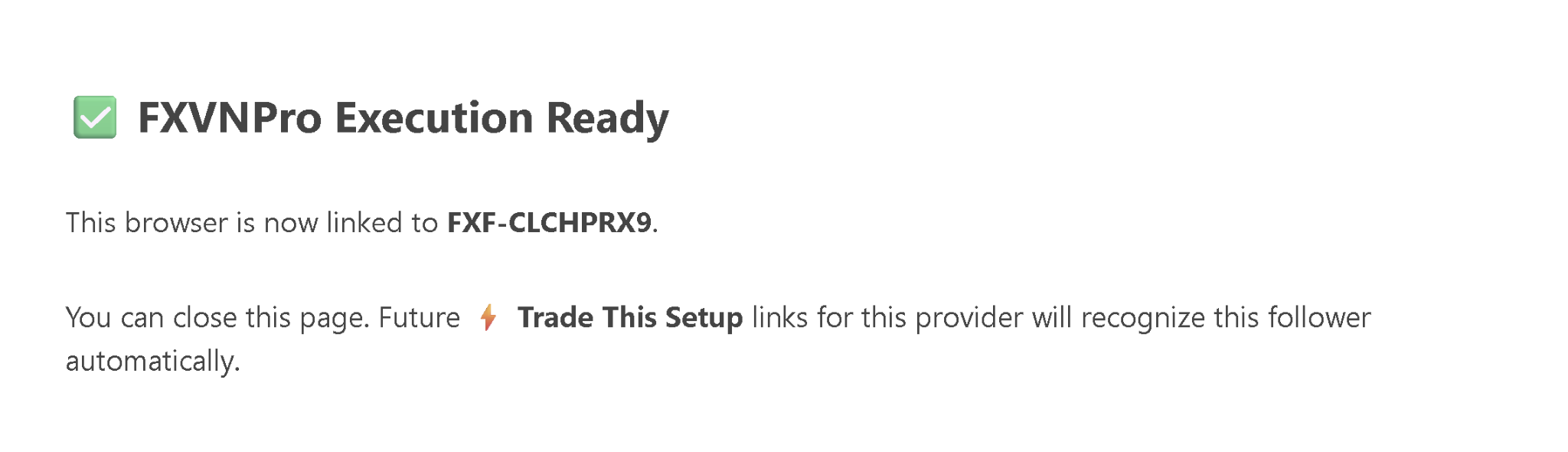
The secure trade activation link is valid for a short period and recognizes the Member automatically.
28
Review setup and choose Risk %
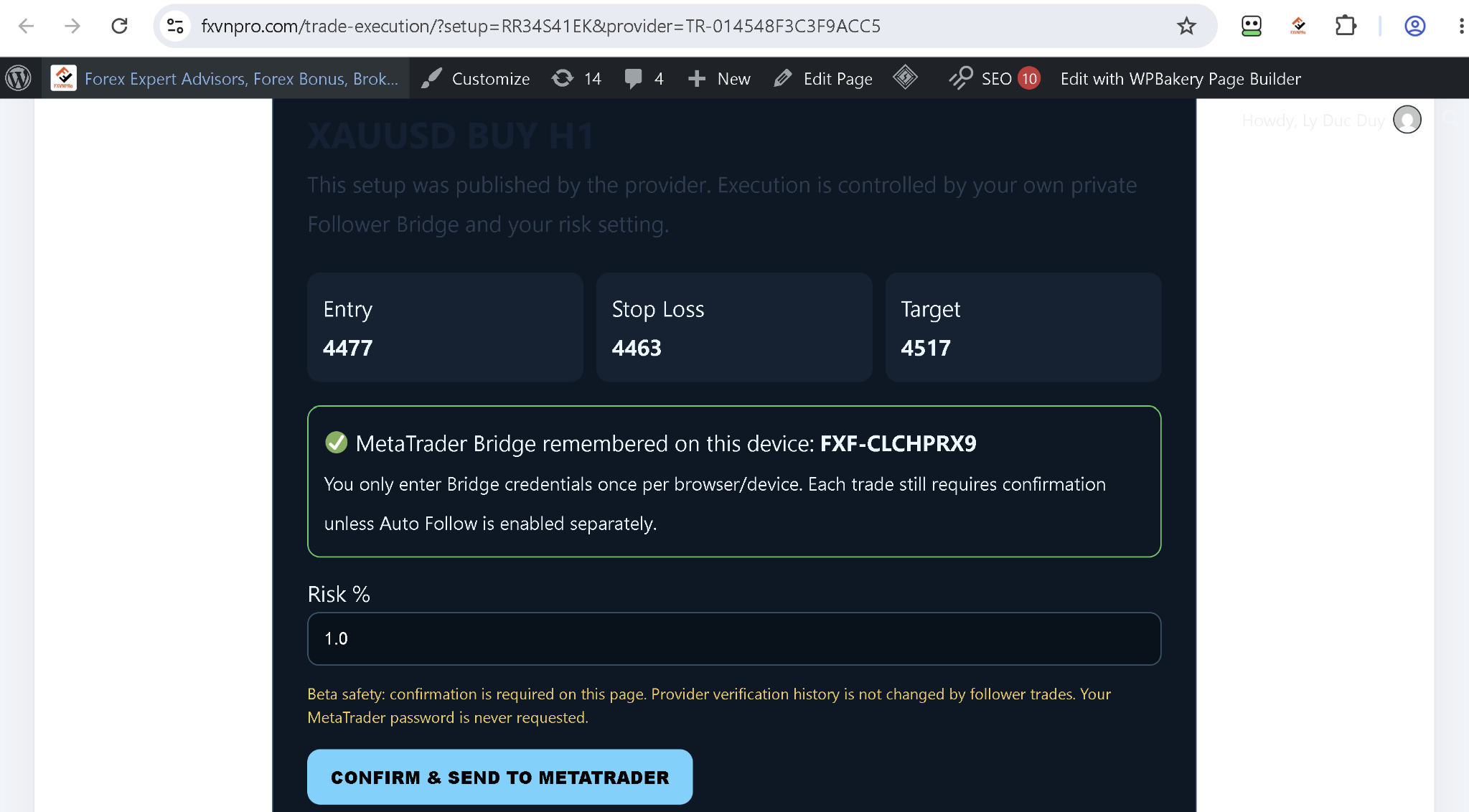
Check Signal Admin, Symbol, Direction, Entry, Stop Loss and Target. Confirm that MetaTrader Bridge is remembered on this device. Choose the desired Risk %, then press CONFIRM & SEND TO METATRADER.
Member controlThe Signal Admin supplies the strategy. The Member decides whether to TRADE and what risk to use.
29
Wait for the queue confirmation
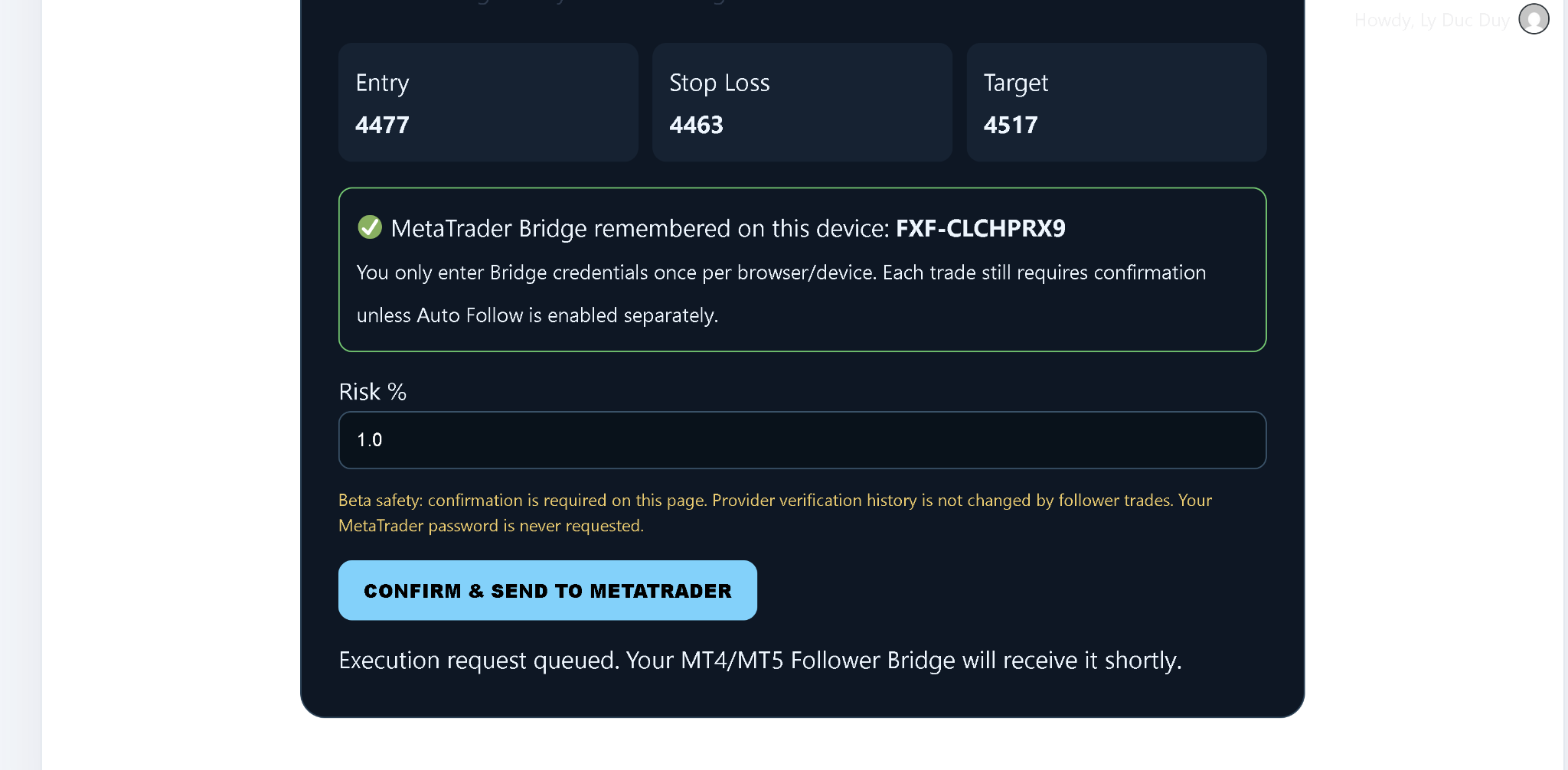
The website should display:
Execution request queued. Your MT4/MT5 Member Bridge will receive it shortly.
30
Confirm the order in MT4/MT5
The Member Bridge polls FXVNPro automatically and places the corresponding order. Check the MetaTrader Trade/Toolbox tab.
PART 7 · VERIFIED RESULT · Signal Admin / ADMIN ONLY
VIP members do not need to run verification
The Signal Admin/Admin may separately connect the original setup to the FXVN MT4/MT5 result connector. When that Signal Admin-side trade is verified and closes, the permanent setup page can change from PENDING to MT5 VERIFIED with WIN / LOSS / BREAKEVEN.
VIP GroupReceives actionable setups.
/t/TOKEN/Permanent setup + later verified proof.
Official Result ChannelOptional public verified-result feed.
Recommended for a clean VIP group/setup_on /result_off
VIP members can revisit the View Setup link whenever they want to check the verified result.
PART 8 · DAILY CHEAT SHEET
After one-time setup, the daily workflow is short
Signal Admin/trade → setup is published → Signal Admin PRO posts it to VIP group
↓
VIPTrade This Setup → Continue to Trade → choose Risk → Confirm
↓
FXVNExecution Queue → Member Bridge → MT4/MT5 order
↓
OPTIONAL Signal Admin VERIFYSignal Admin result connector → permanent MT5 VERIFIED proof
READY TO USE
Signal Admin strategy. Member control. FXVN connects the workflow.
If every green checkpoint above passed once, the Signal Admin and VIP do not need to repeat the onboarding steps for every trade.