Plan a Trade
Build a trade plan and use practical trading tools before you act.
Trade IdeasRisk ToolsCalculators
BUILD A TRADE IDEA →
Choose a trader, decide how much risk you are comfortable with, connect your MT4/MT5 and then start following trades.
Your money remains at your broker. FXVNPro does not need your broker trading password in bridge mode.
Master = trader. Follower = your account. Balance ratio/fixed lot are different ways to choose copied trade size. Exposure limits are maximum risk controls.
Plan trades, connect MT4 & MT5, review verified execution, explore traders and research brokers — without learning the whole platform first.
Build a trade plan and use practical trading tools before you act.
Use Browser Trading or turn supported Telegram signals into a structured trading workflow.
Explore CopyTrade TRADERs, review their records and choose your own risk settings.
Choose your path. FXVN connects trading strategies to MT4/MT5 while the Member keeps control of the trading account and risk.
Create a TRADER profile, set your copy plans, connect the TRADER Bridge and make your strategy available to Members.
Choose a TRADER, connect your own MT4/MT5 account, select a plan and activate your CopyTrade subscription.
Share your strategy through a structured TRADER profile and MT4/MT5 Connector connection.
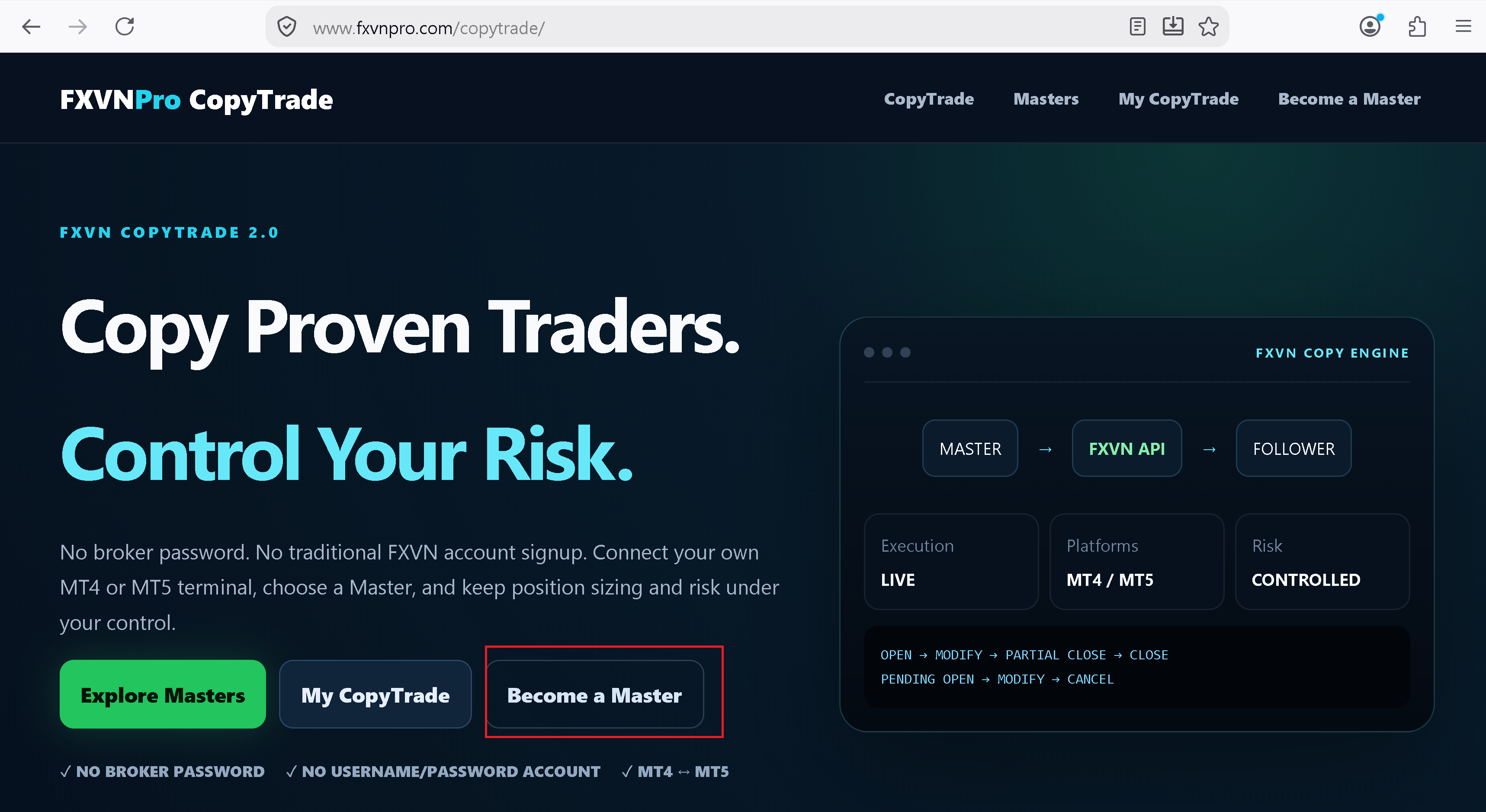
Open FXVN CopyTrade and choose Become a TRADER. This starts the TRADER onboarding flow.
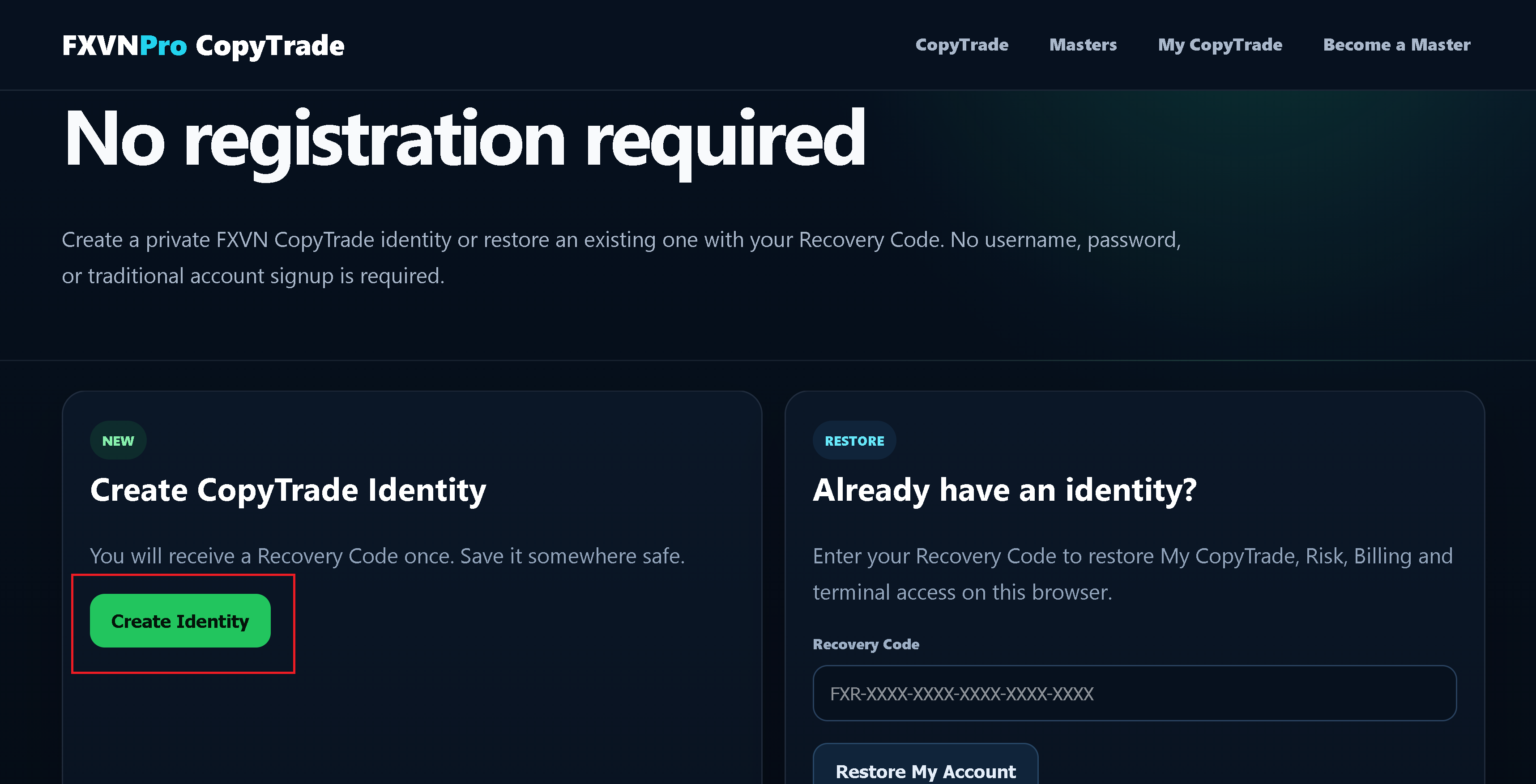
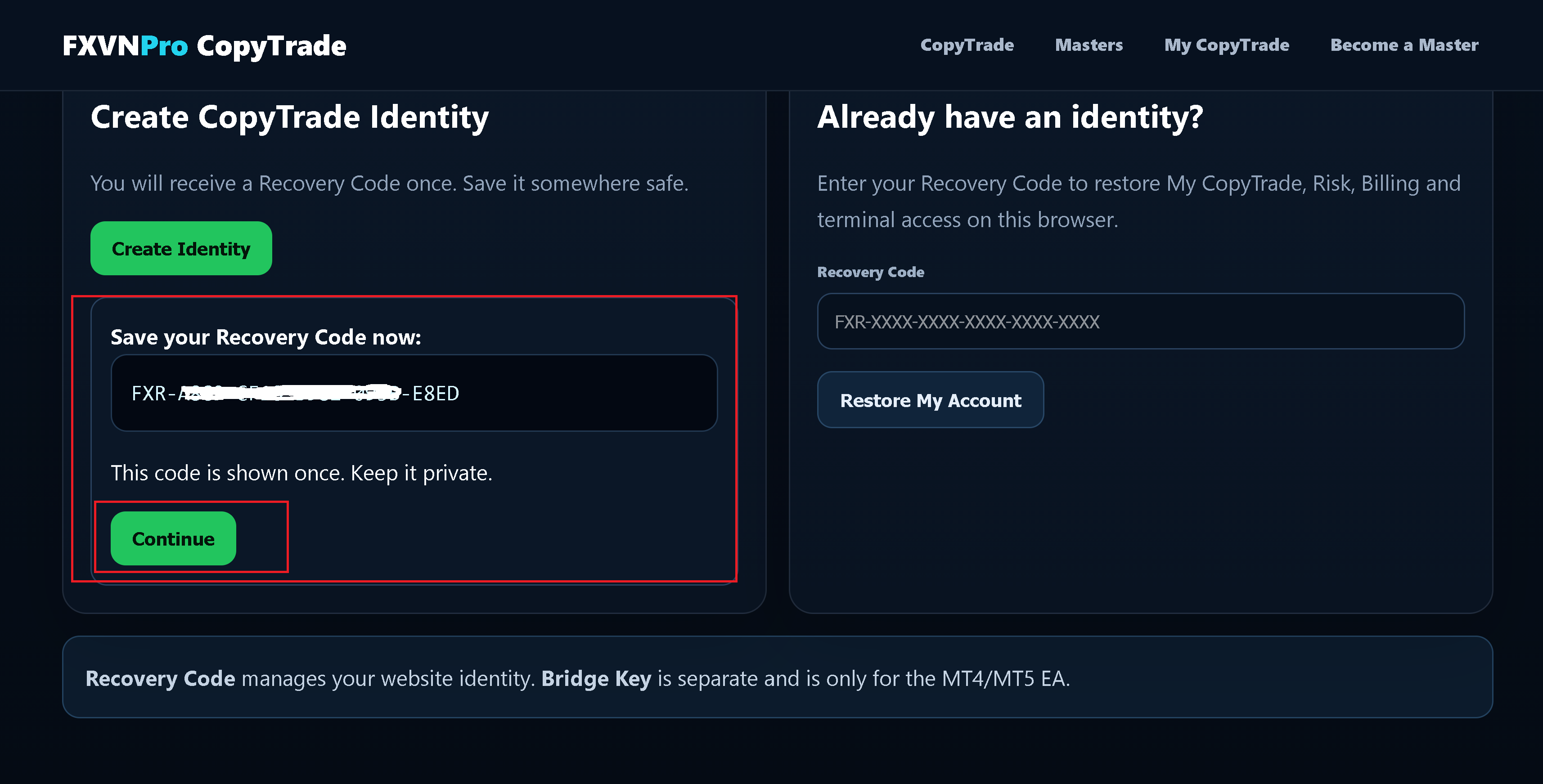
FXVN CopyTrade does not require a traditional username/password registration. Choose Create Identity to create your CopyTrade identity.
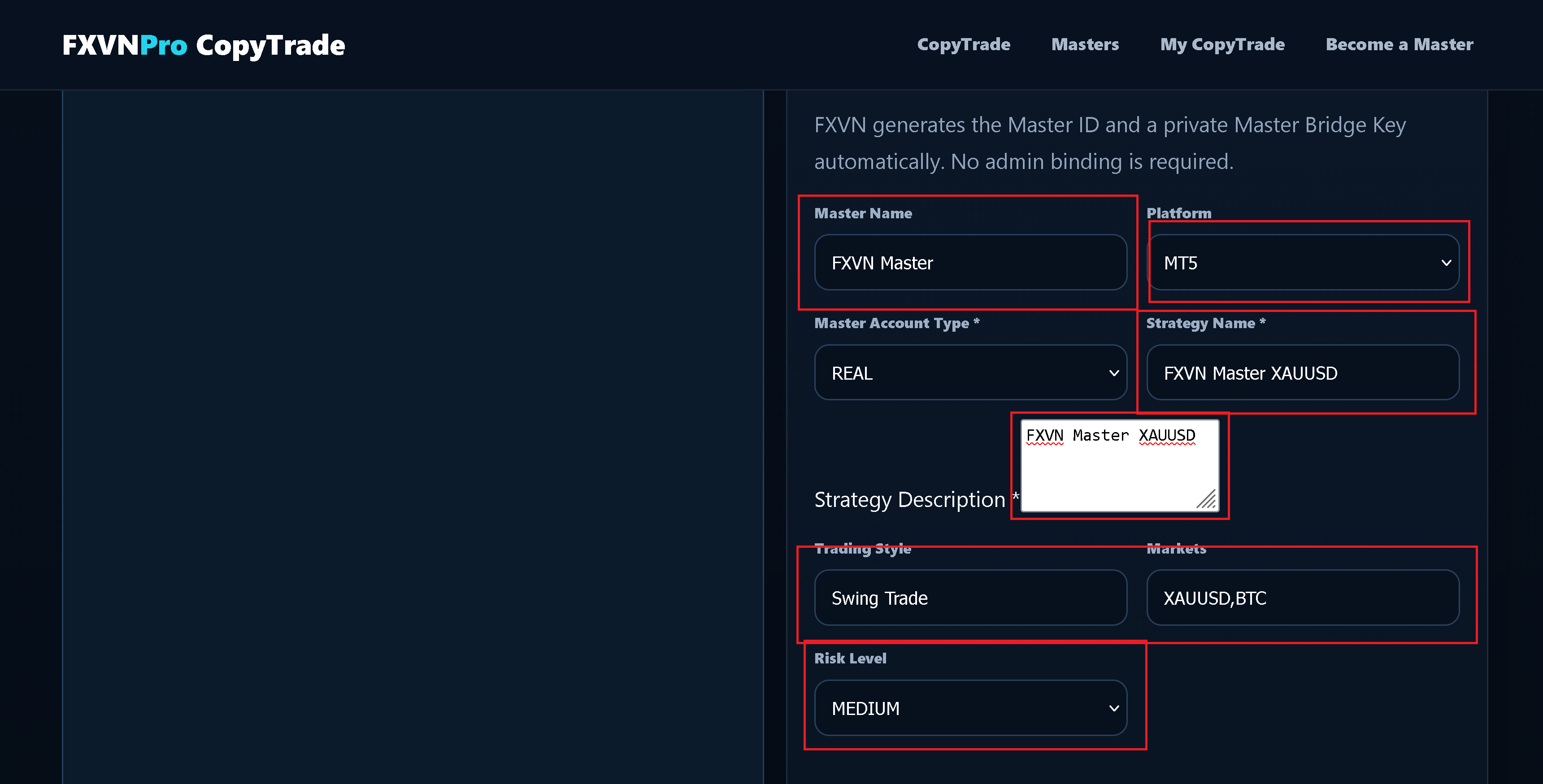
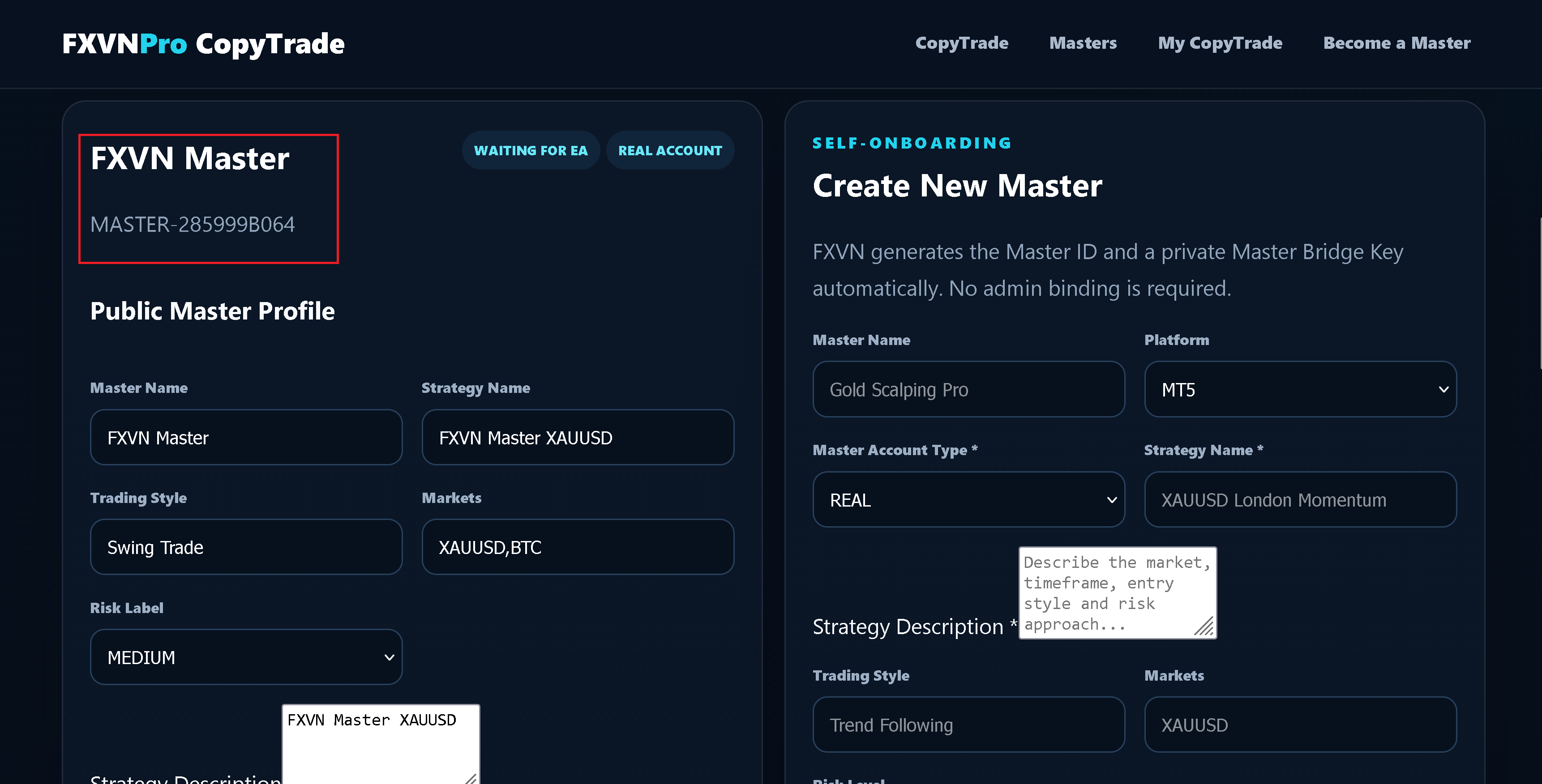
Enter the public information that Members will use to understand your strategy: TRADER name, platform, market focus, strategy description, trading style and related profile details.
Use clear, factual information. Avoid performance claims that cannot be verified.
Set the plans Members can use to copy your strategy. FXVN supports Daily, Weekly and Monthly plan structures. Enable only the plans you want to offer and enter the applicable minimum price.
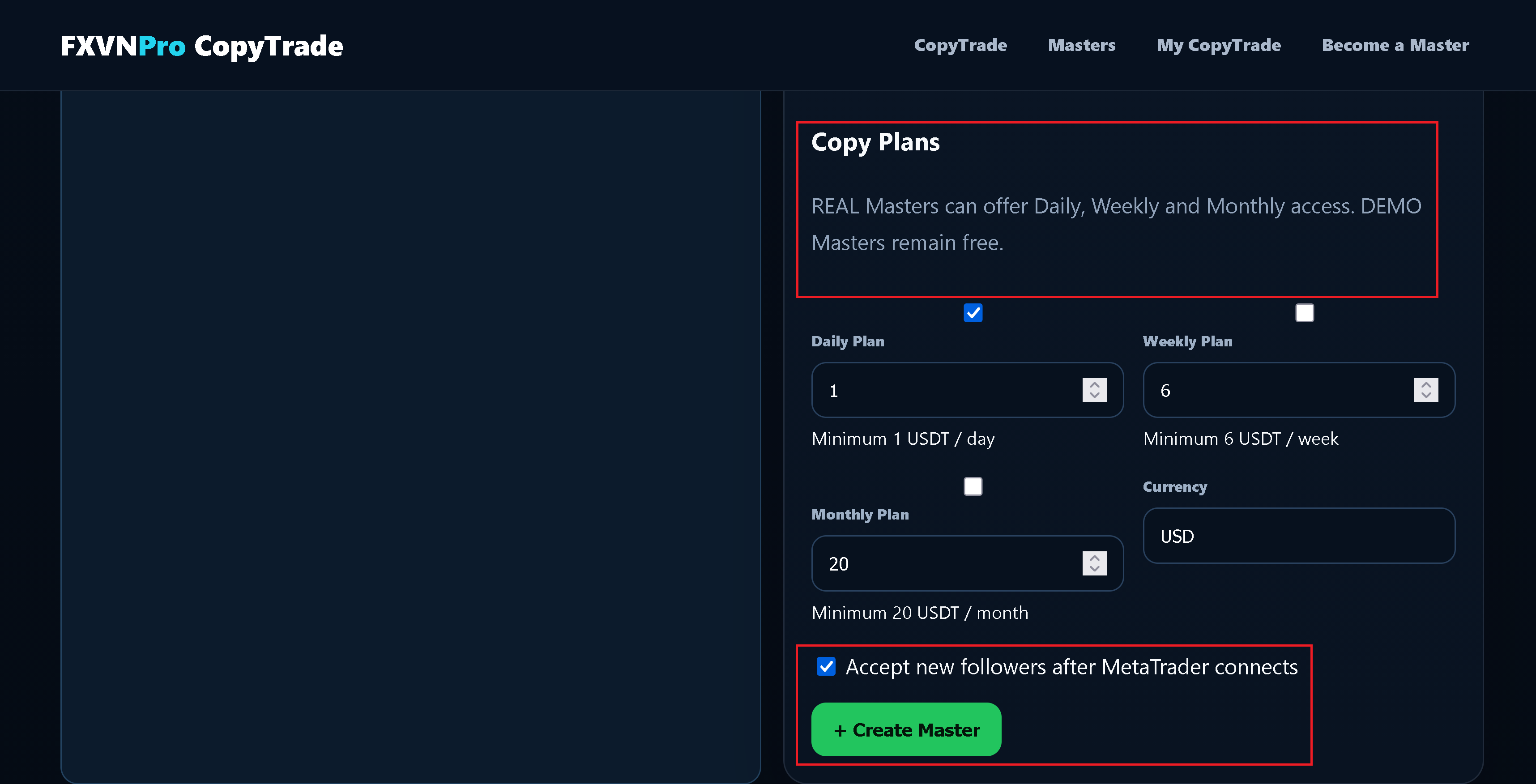
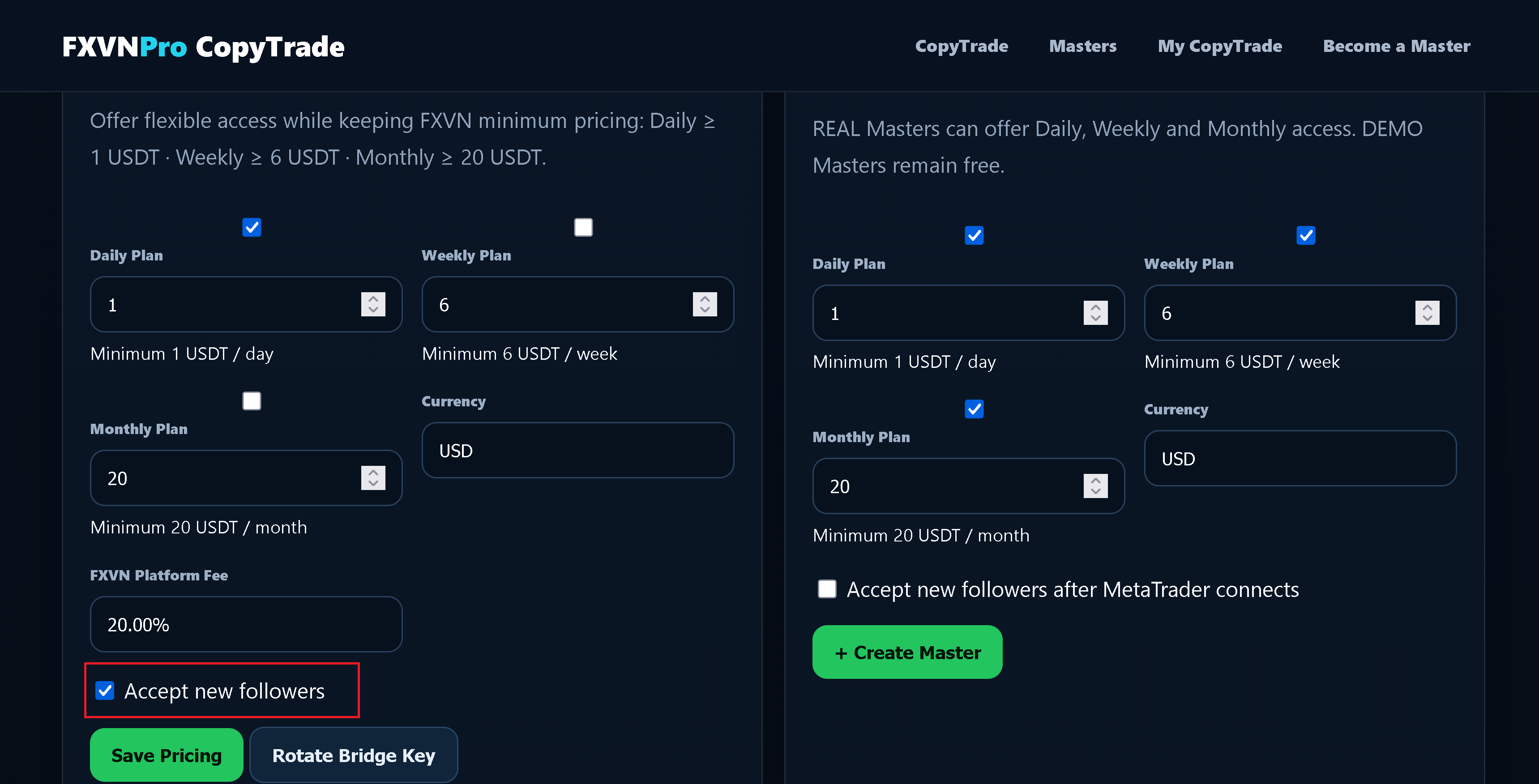
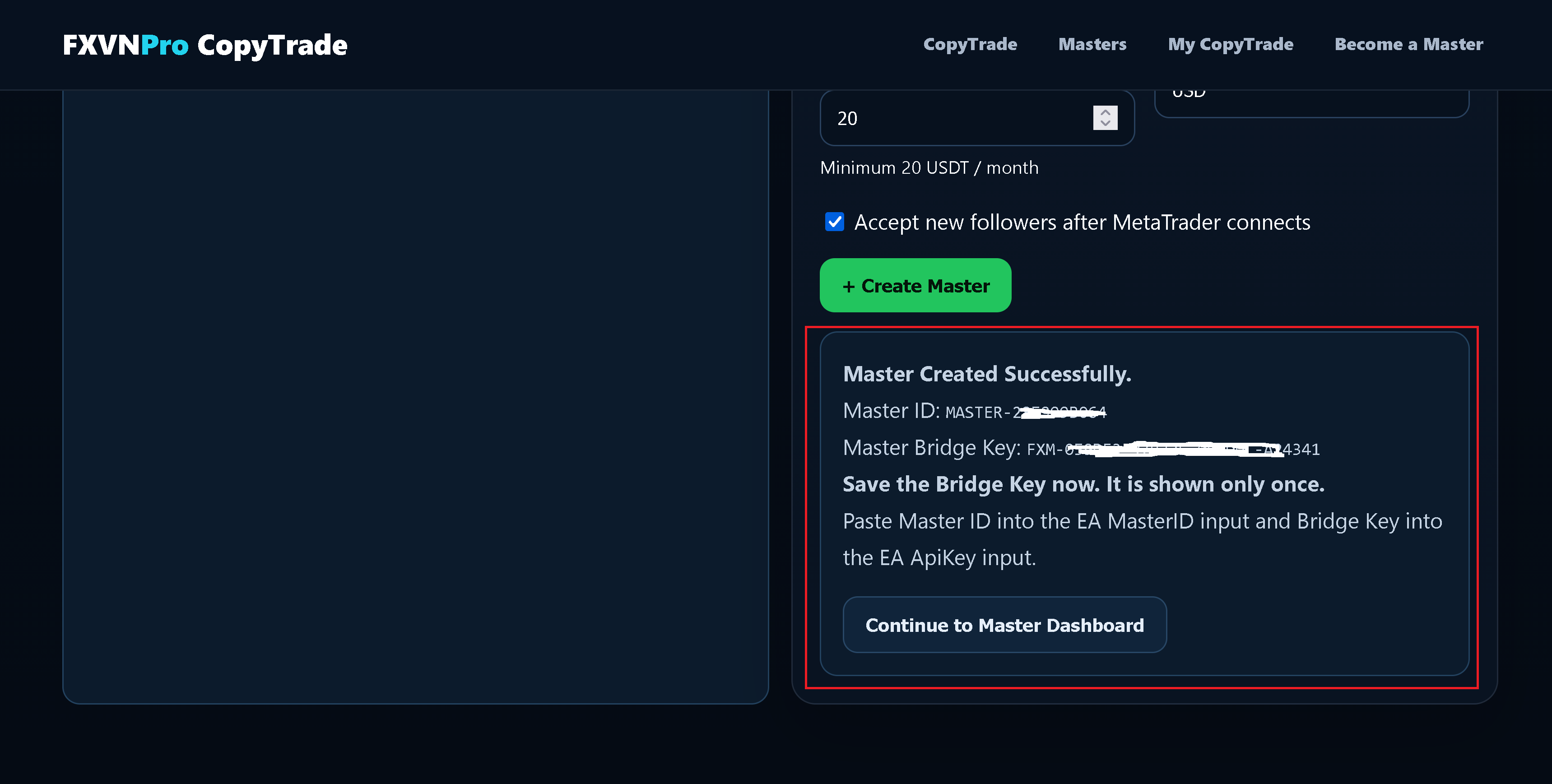
Accept the Member connection terms, then choose Create TRADER. After creation, FXVN displays the TRADER information and access to the TRADER Dashboard.
Open the TRADER payout section and enter the supported USDT payout wallet for TRADER earnings. Carefully verify the wallet address before saving it.
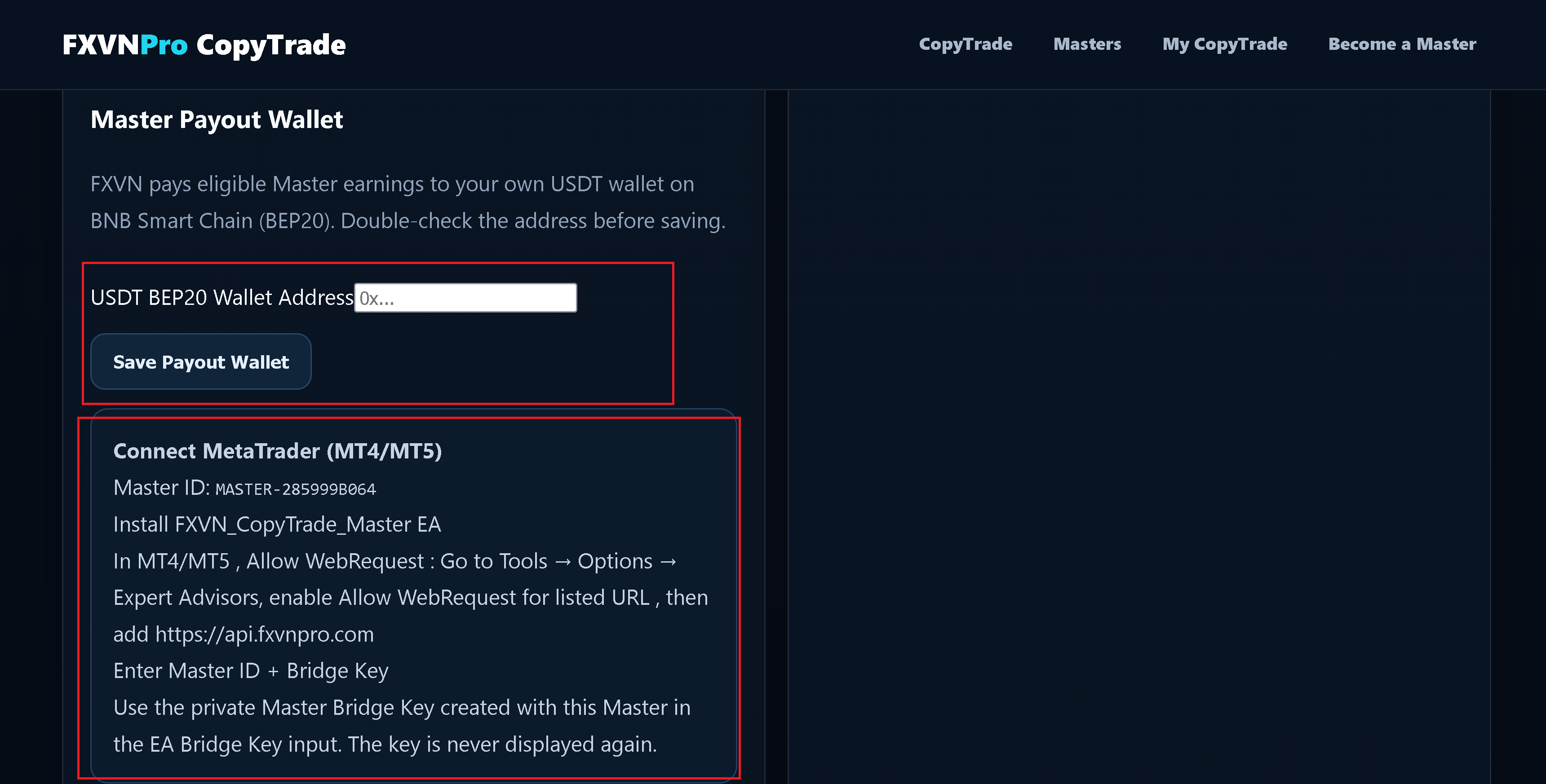
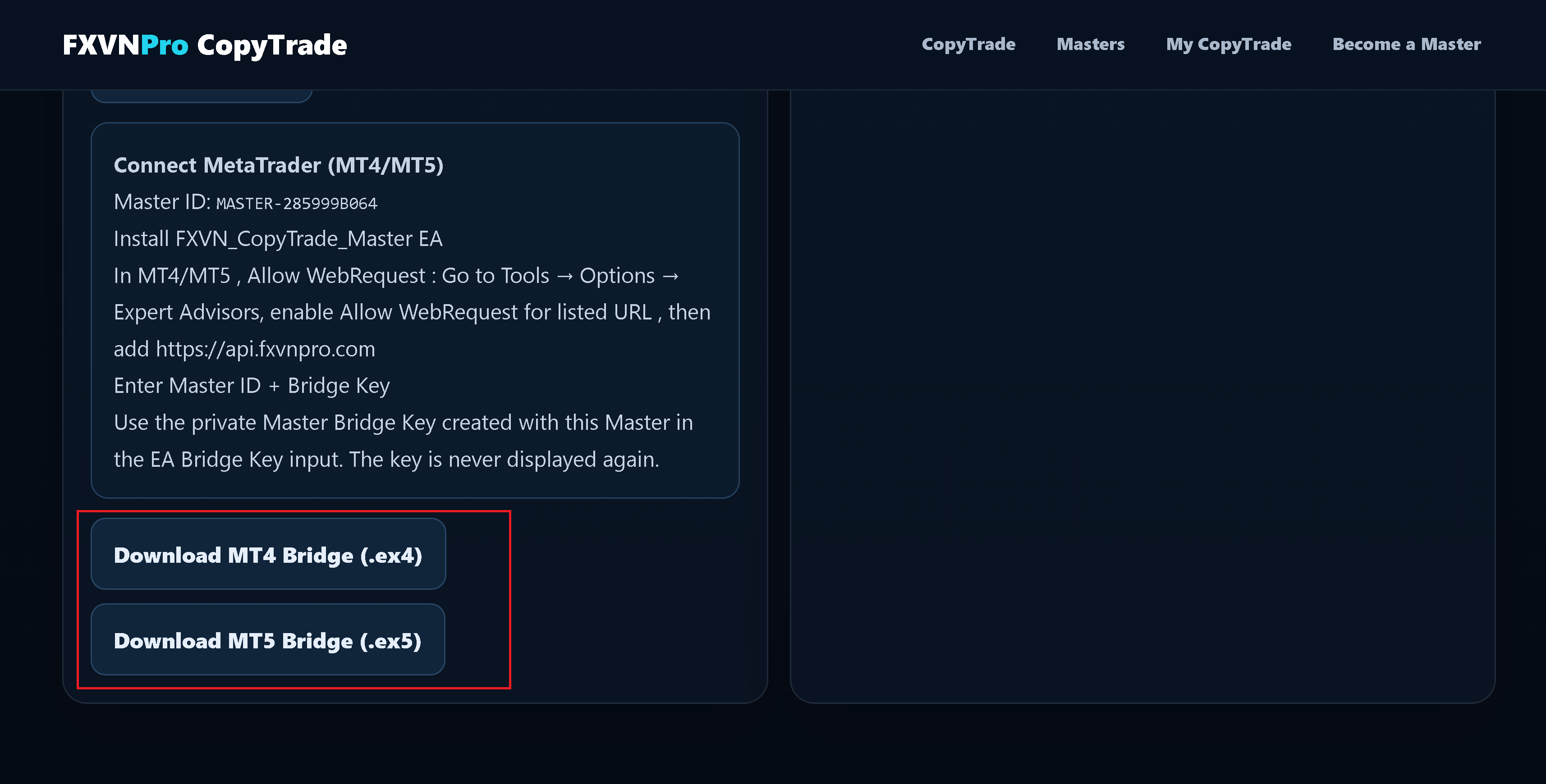
Open Connect MetaTrader (MT4/MT5) and download the Bridge version that matches your trading terminal. Keep the TRADER MT4/MT5 Connection Code private; it is used by the EA to identify this TRADER connection.
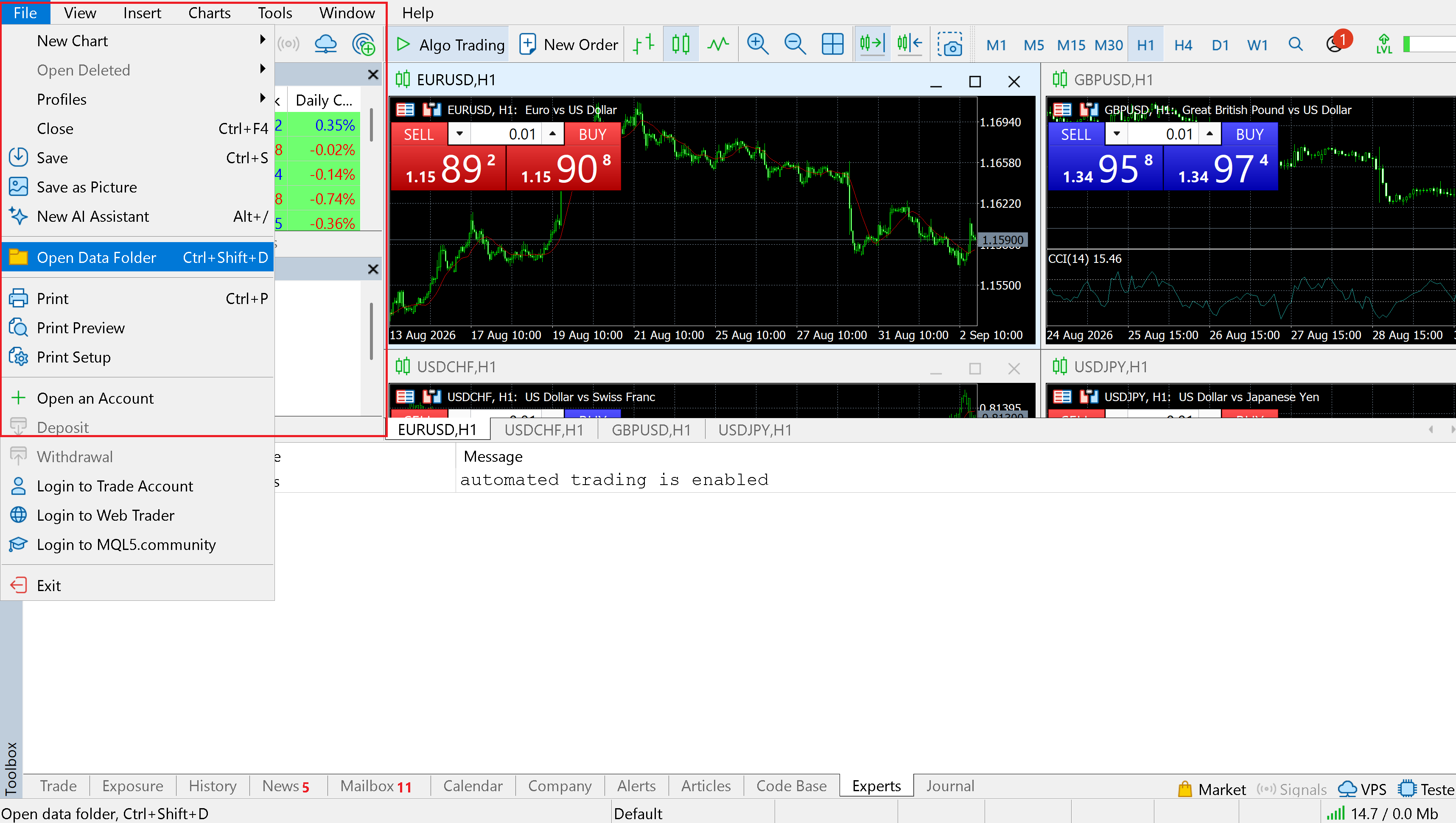
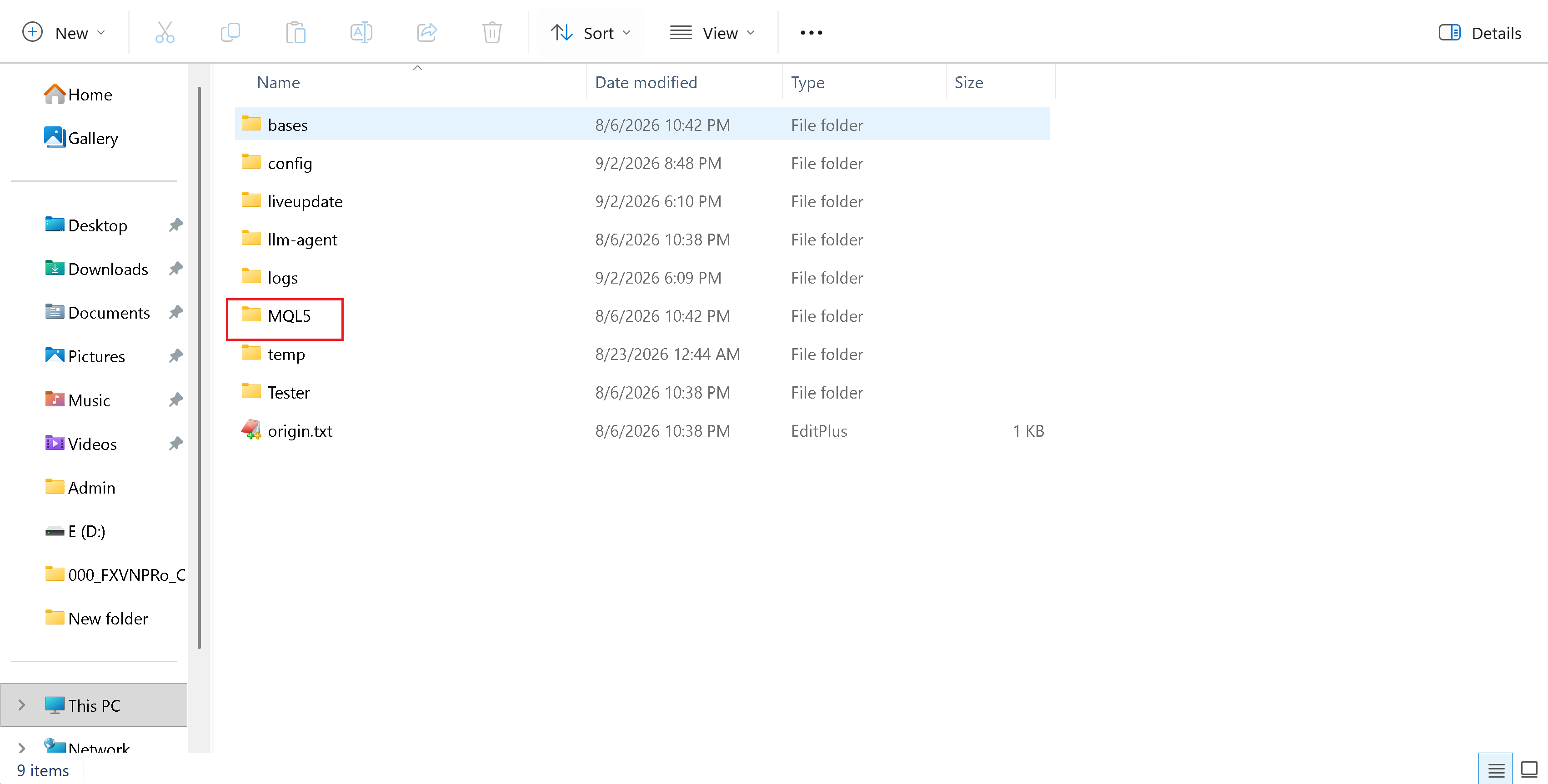
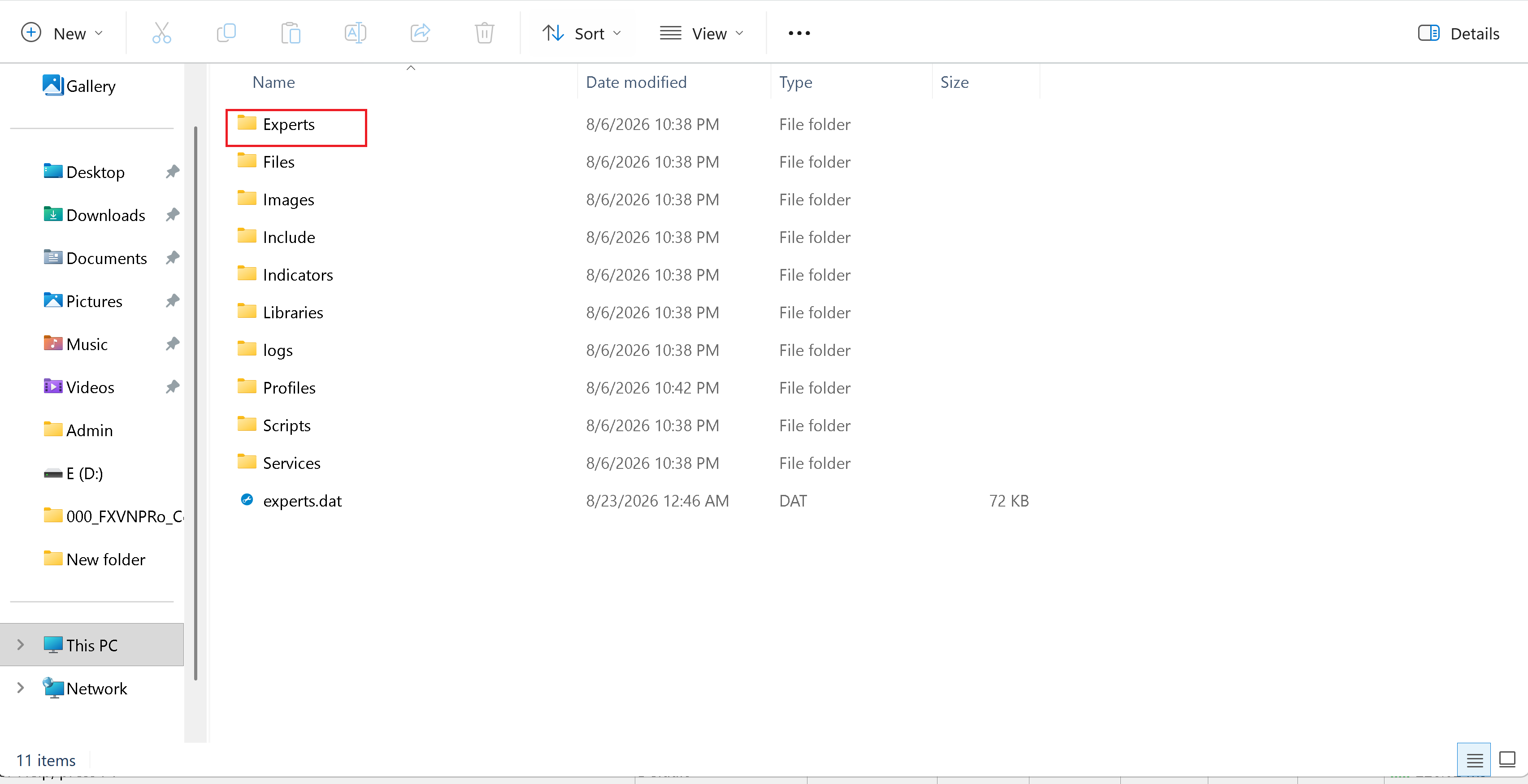
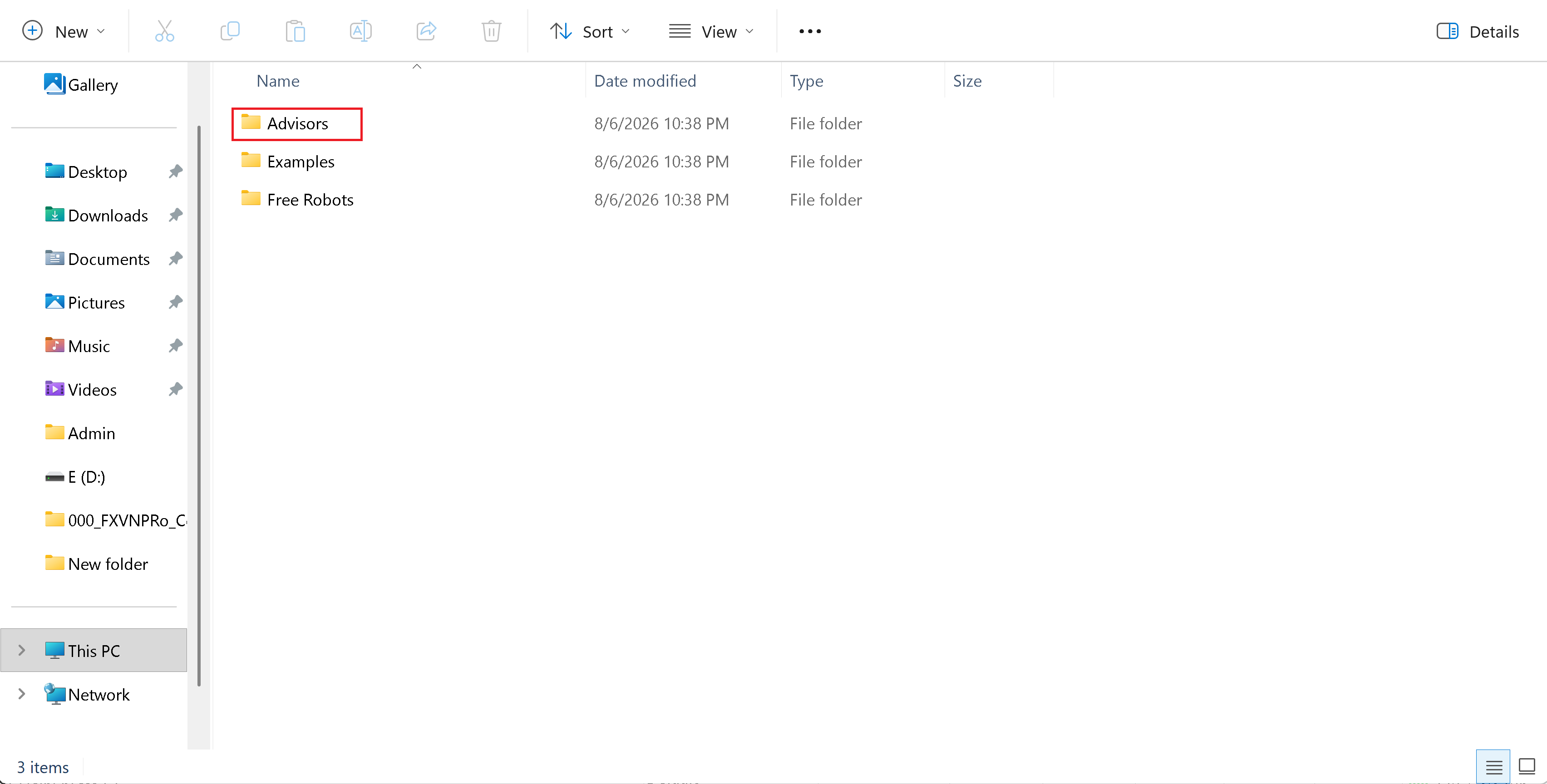
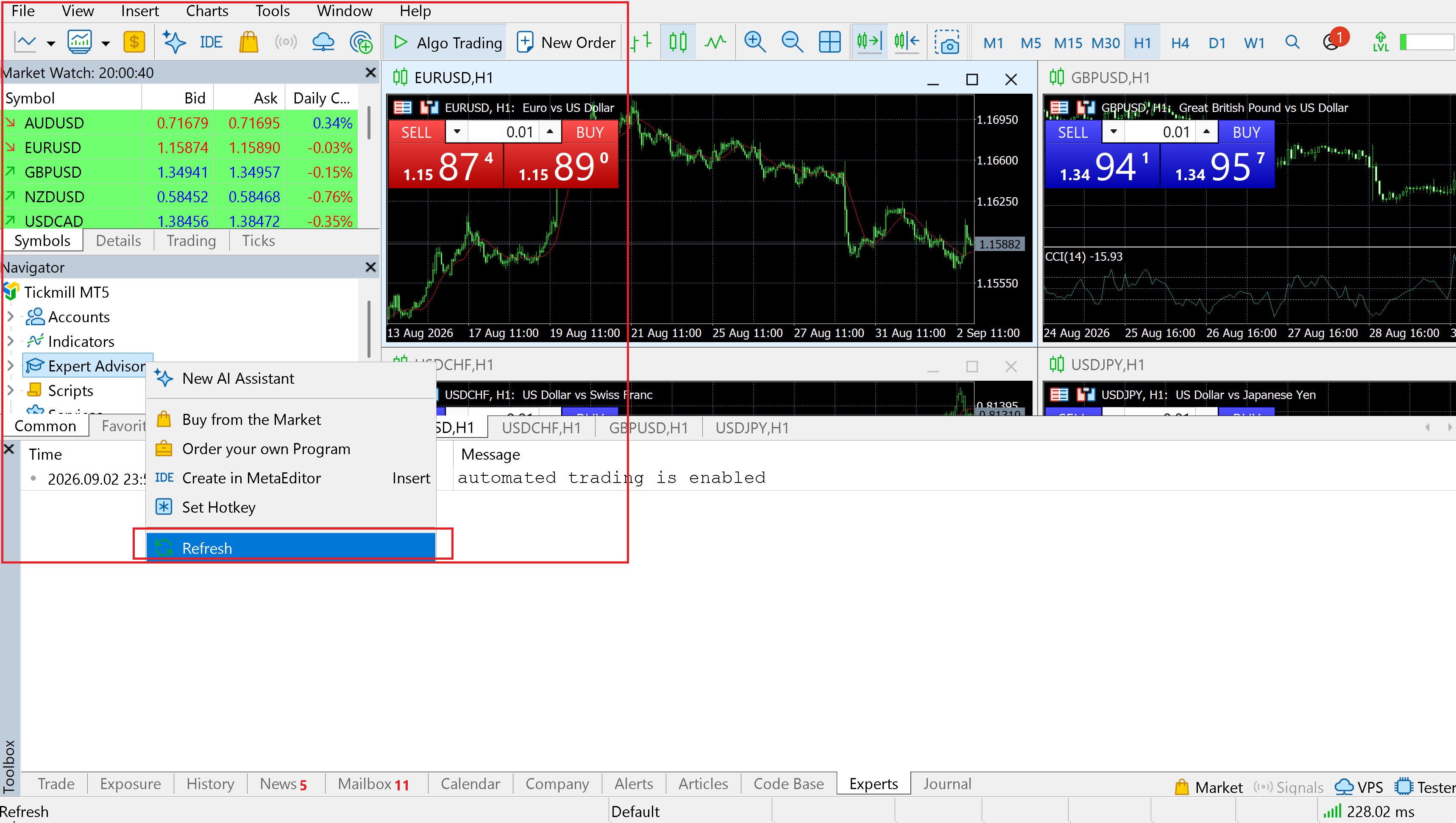
In MetaTrader, open File → Open Data Folder. Navigate to the appropriate MQL4/MQL5 → Experts directory and place the FXVN TRADER Bridge file there. Return to MetaTrader and refresh the Trading Programs (Expert Advisors) list if necessary.
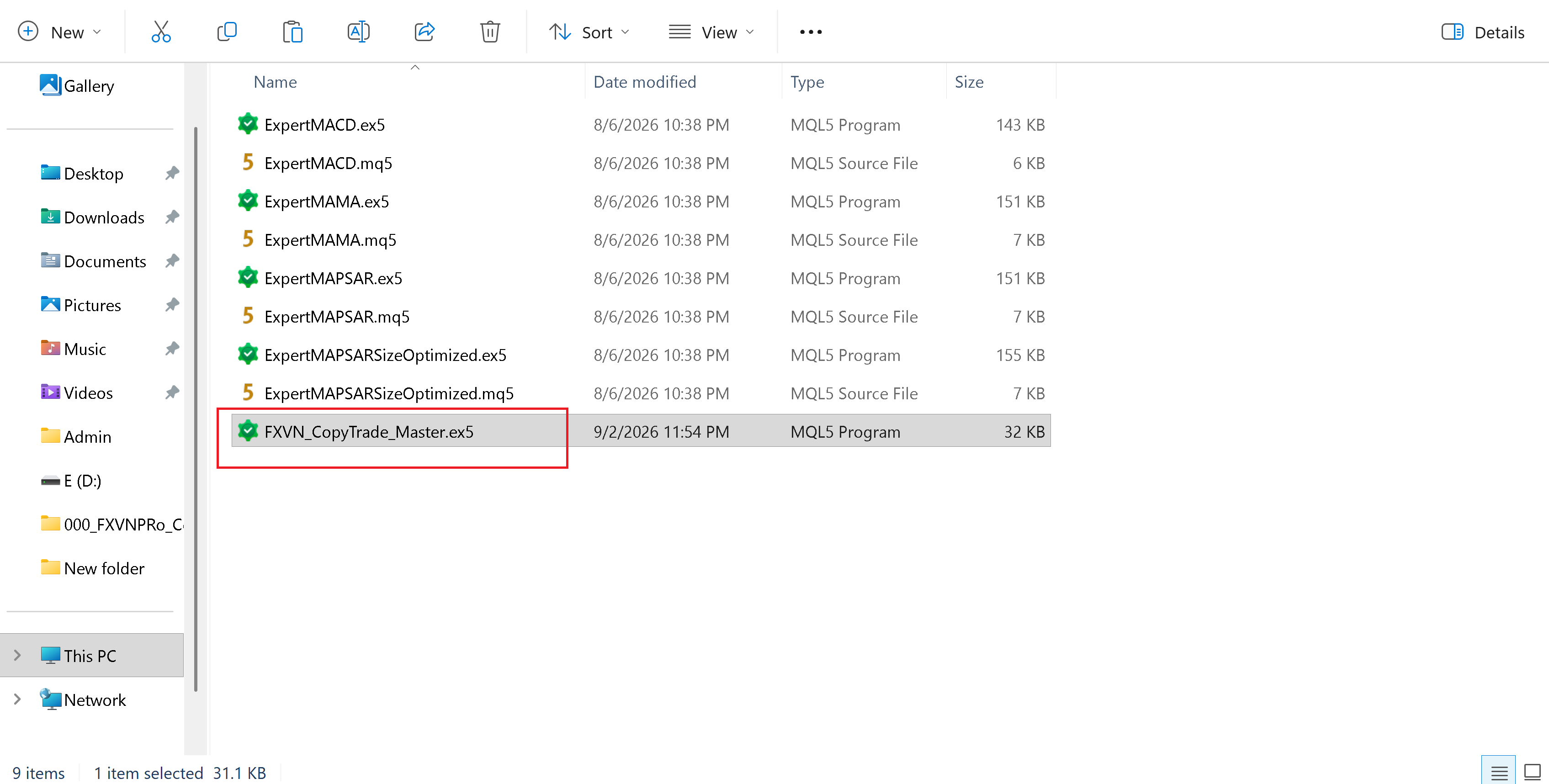
Attach the FXVN TRADER Bridge to a chart. In the EA inputs, enter the values shown on your FXVN connection page, including the TRADER identifier/MT4/MT5 Connection Code where requested.
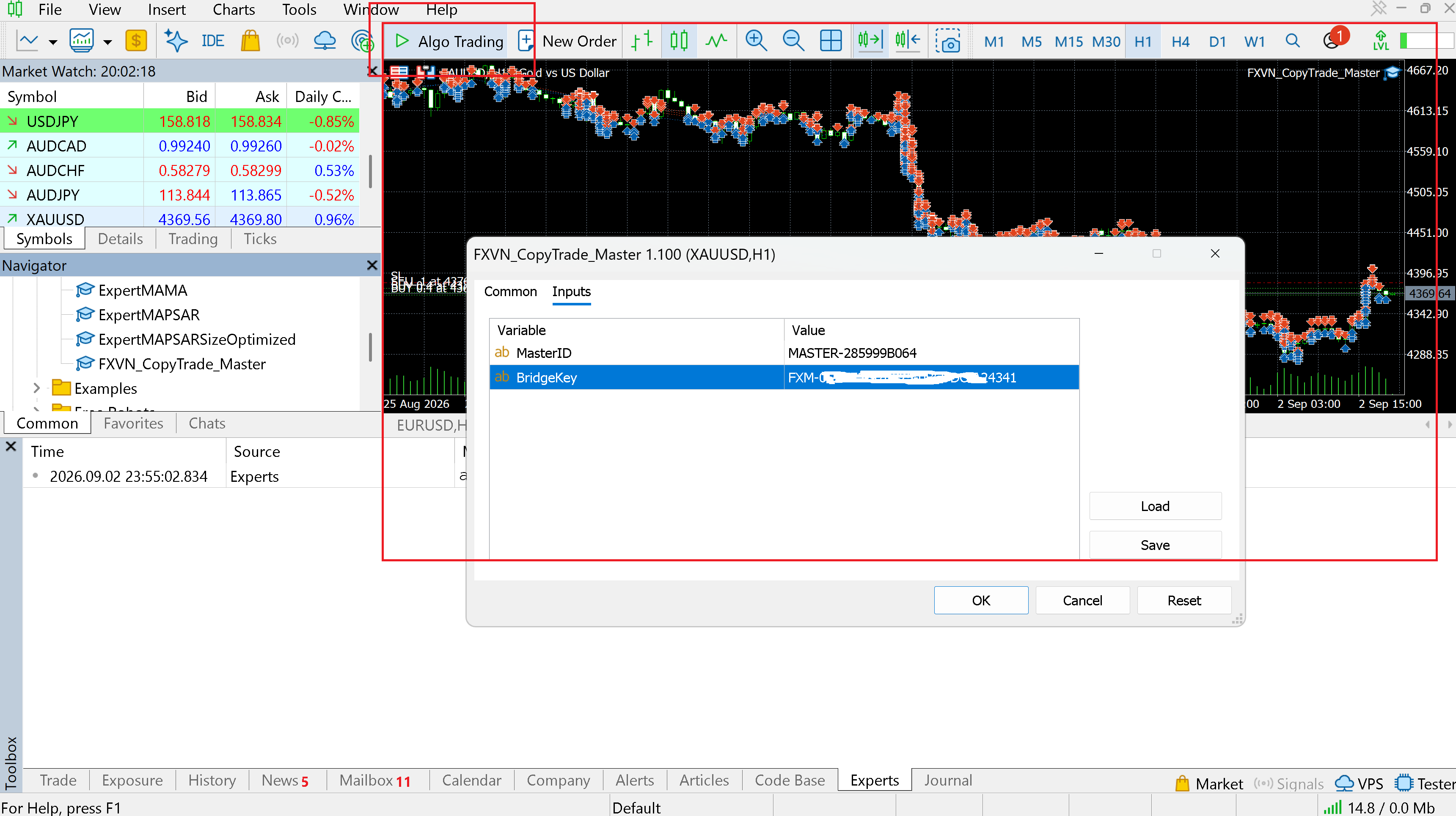
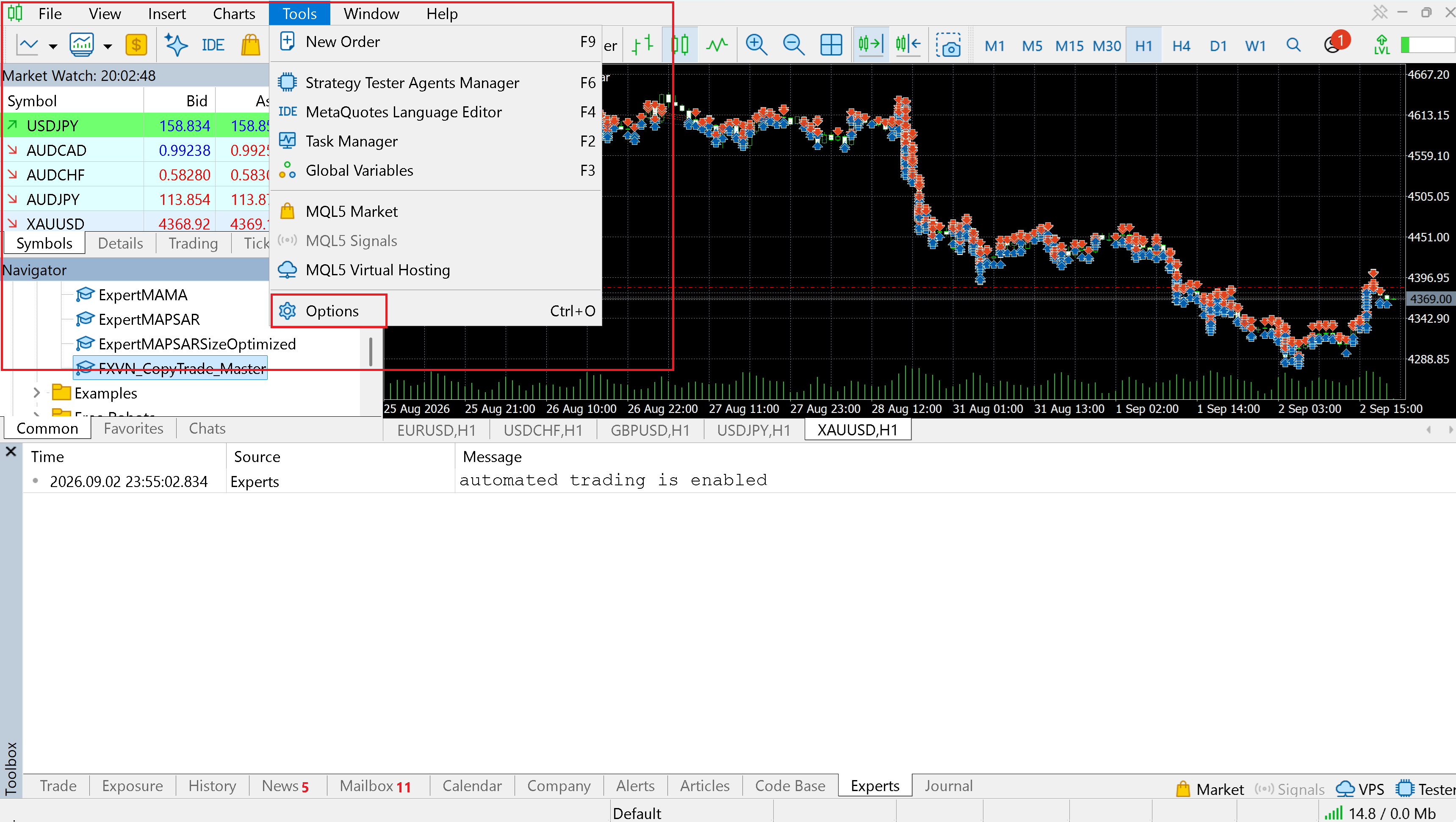
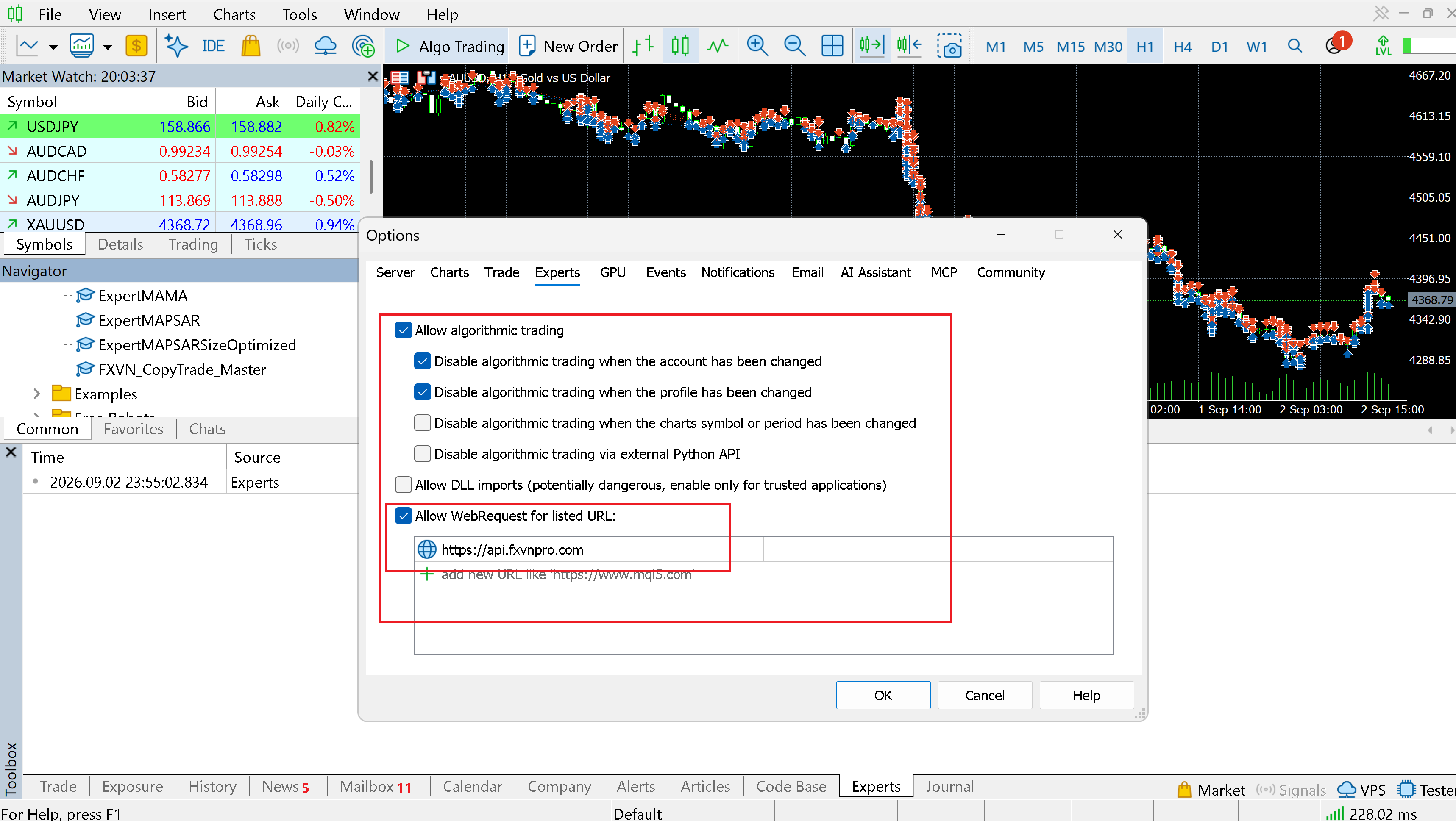
Enable the permissions required by the EA. In MetaTrader options, allow automated trading and add the FXVN API URL shown by your FXVN connection page to the permitted WebRequest URLs.
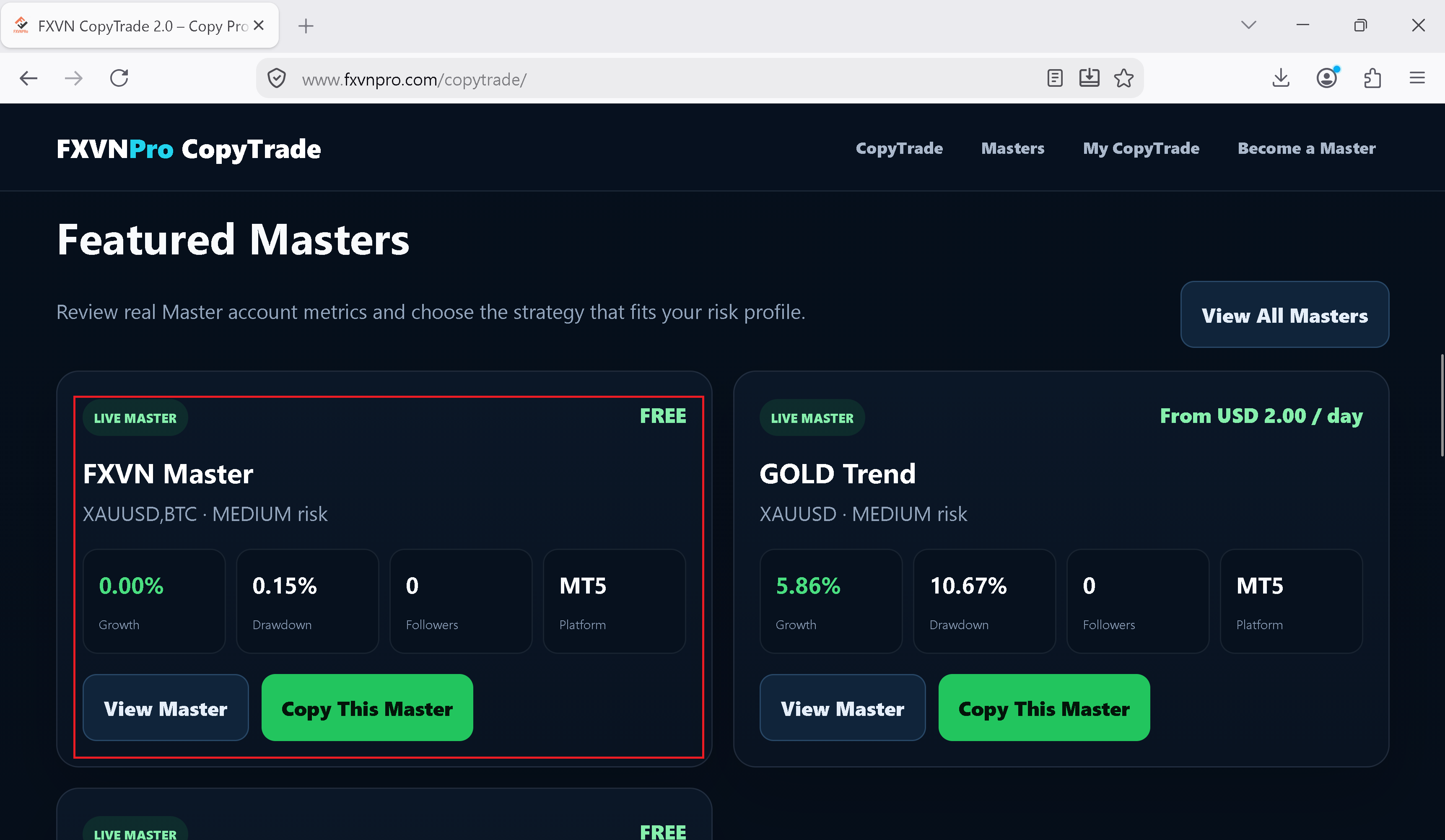
Return to FXVN CopyTrade and confirm the TRADER connection/status. Once active, the TRADER can appear in the TRADER Marketplace for Members to review and copy.
Keep MetaTrader and the FXVN TRADER Bridge running when the strategy should be available to CopyTrade Members.
Choose a TRADER, connect your own MetaTrader account and activate the plan you want.
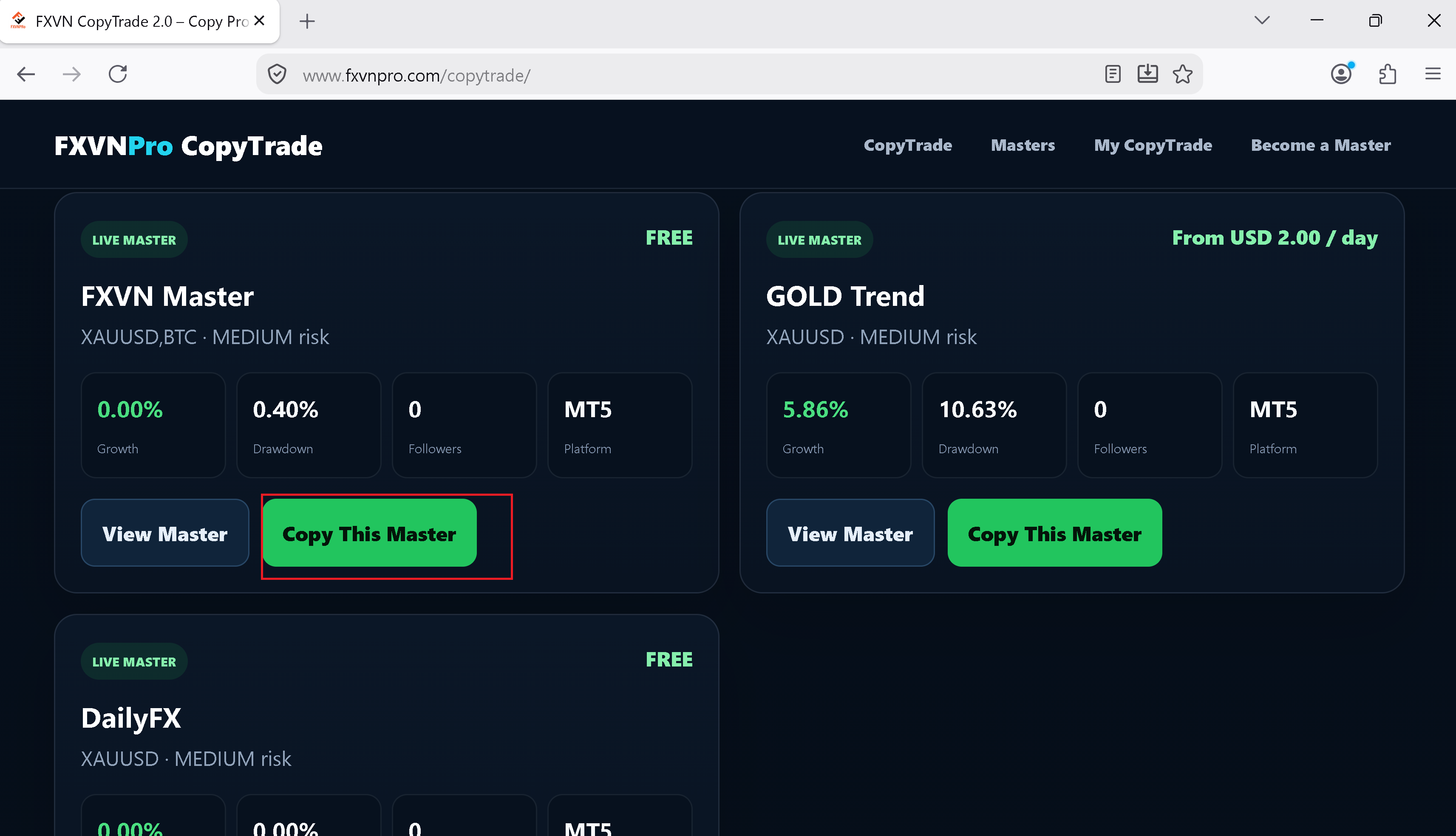
Browse the FXVN TRADER Marketplace. Review the available TRADER information and choose Copy This TRADER when you find a strategy you want to follow.
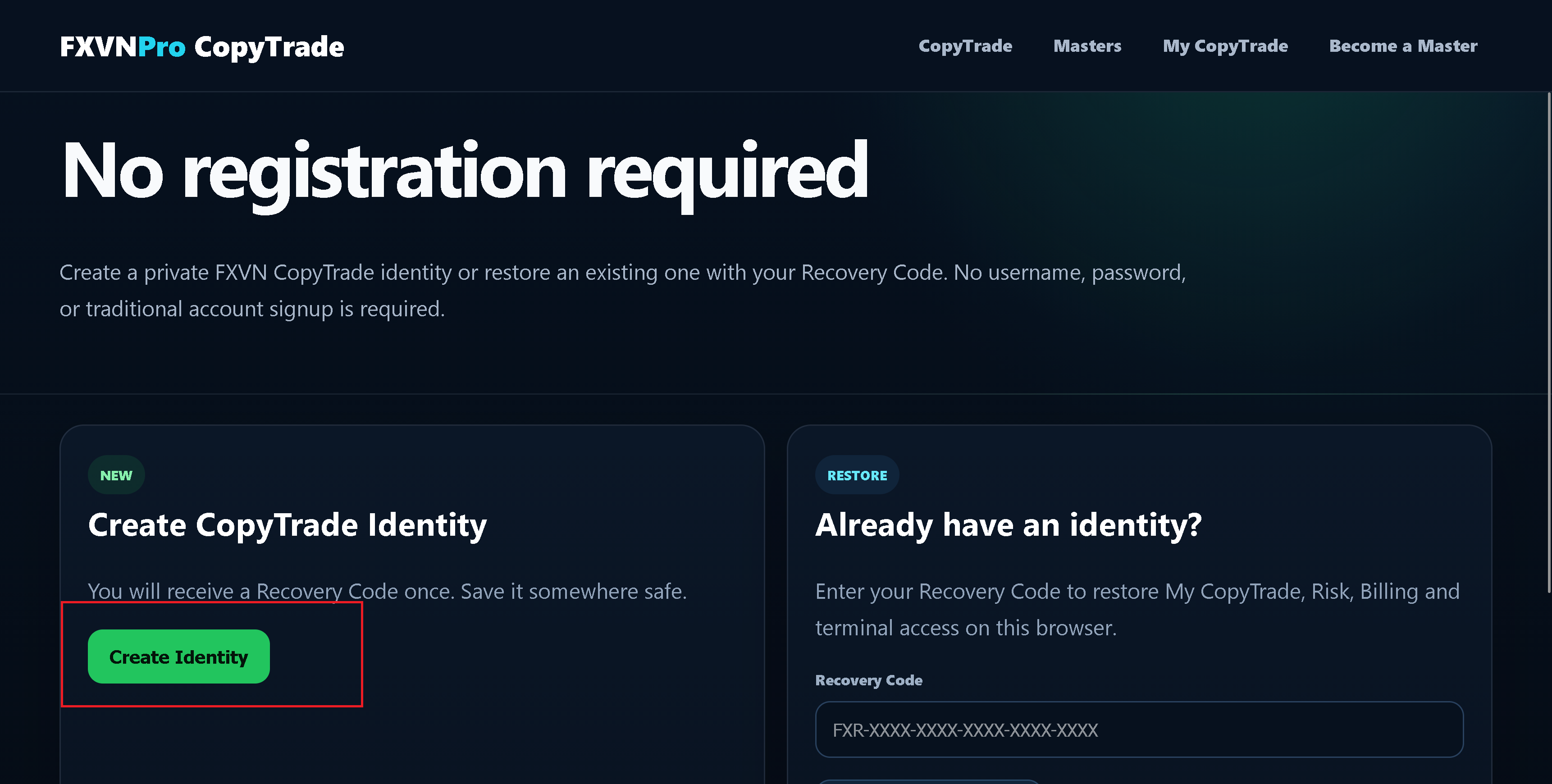
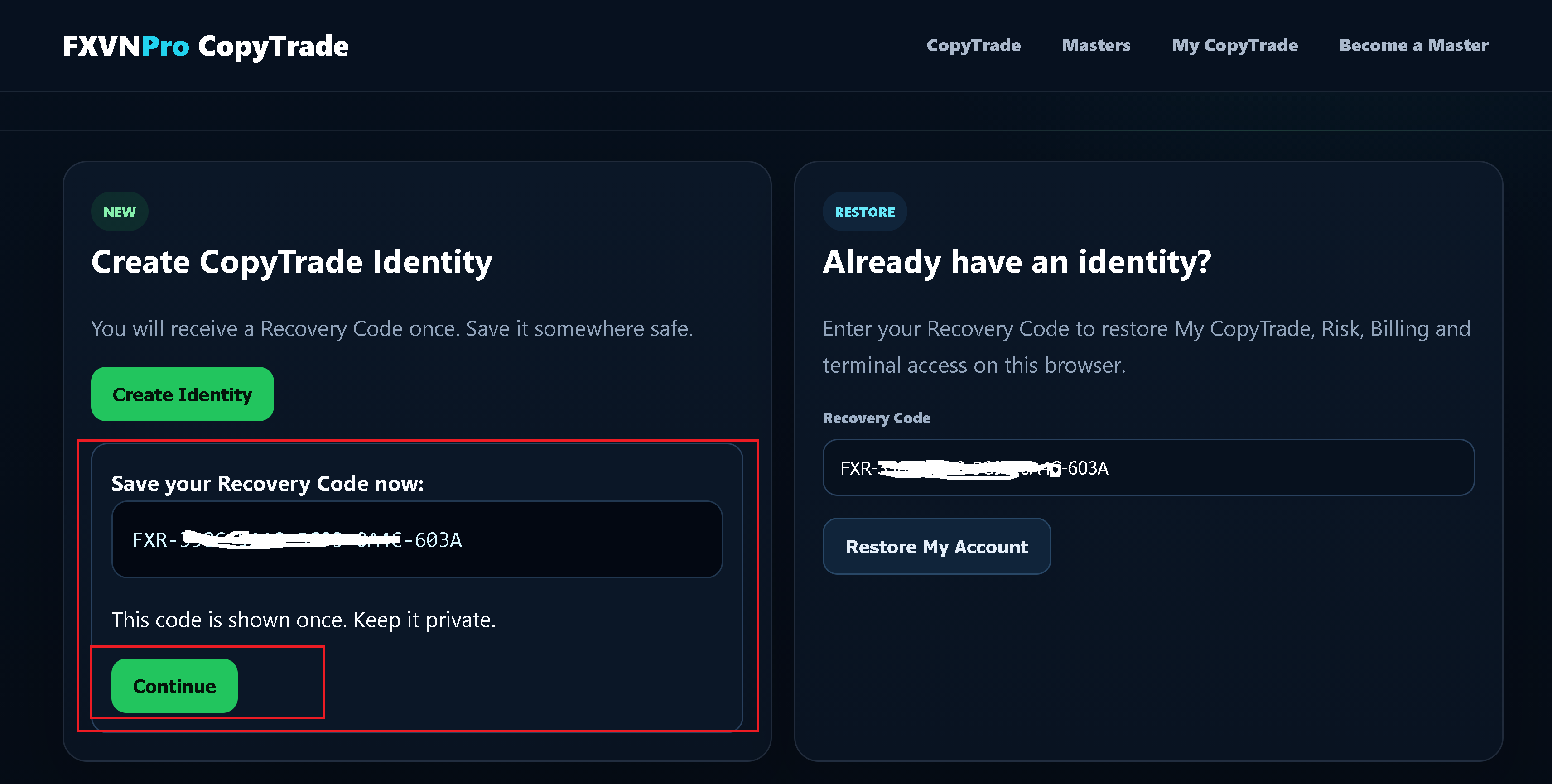
If this is your first time using FXVN CopyTrade, choose Create Identity. If you already have an identity, restore it with your Recovery Code.
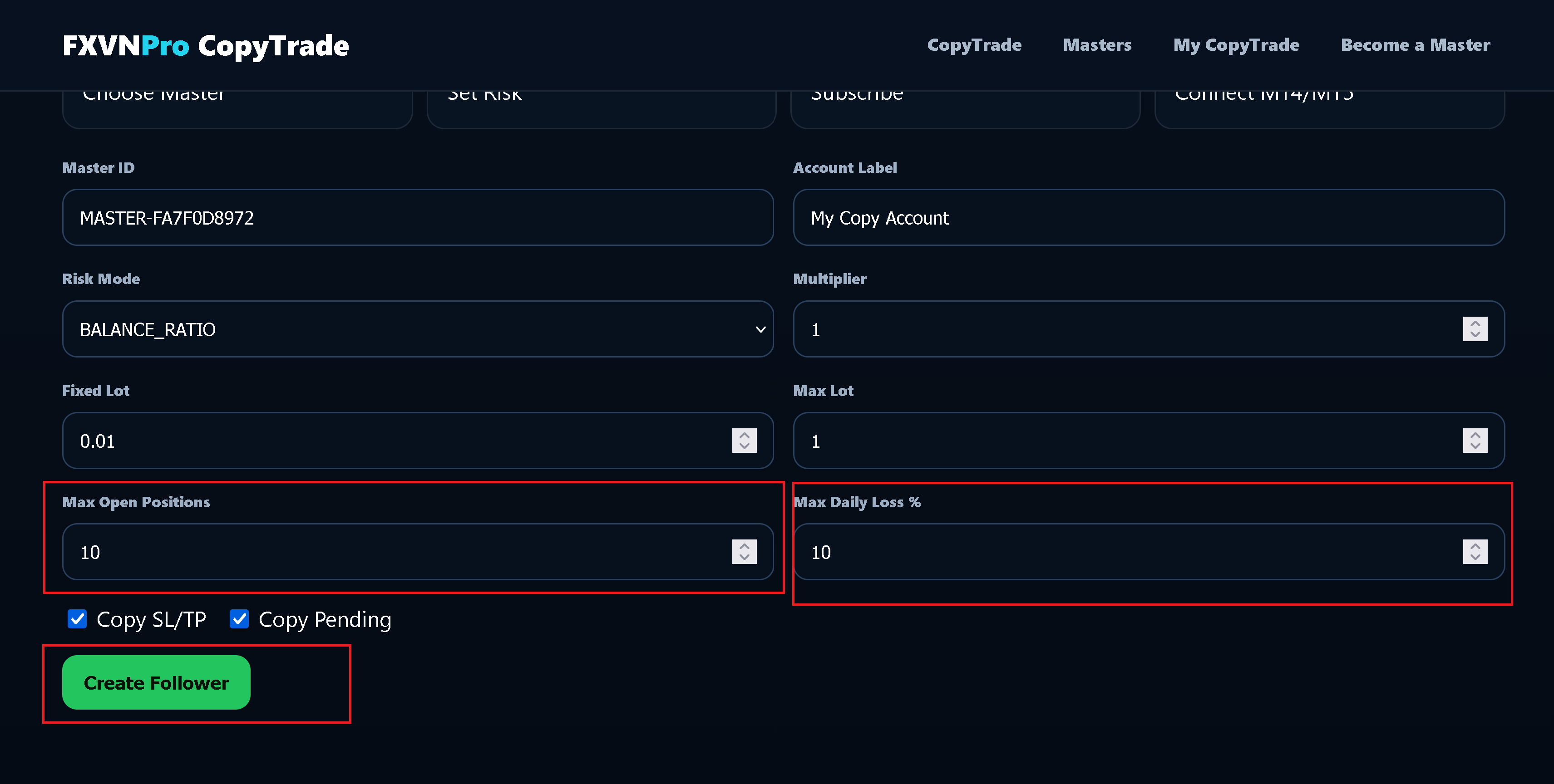
Enter the requested Member/account settings and risk preferences. Review the values carefully, then choose Create Member.
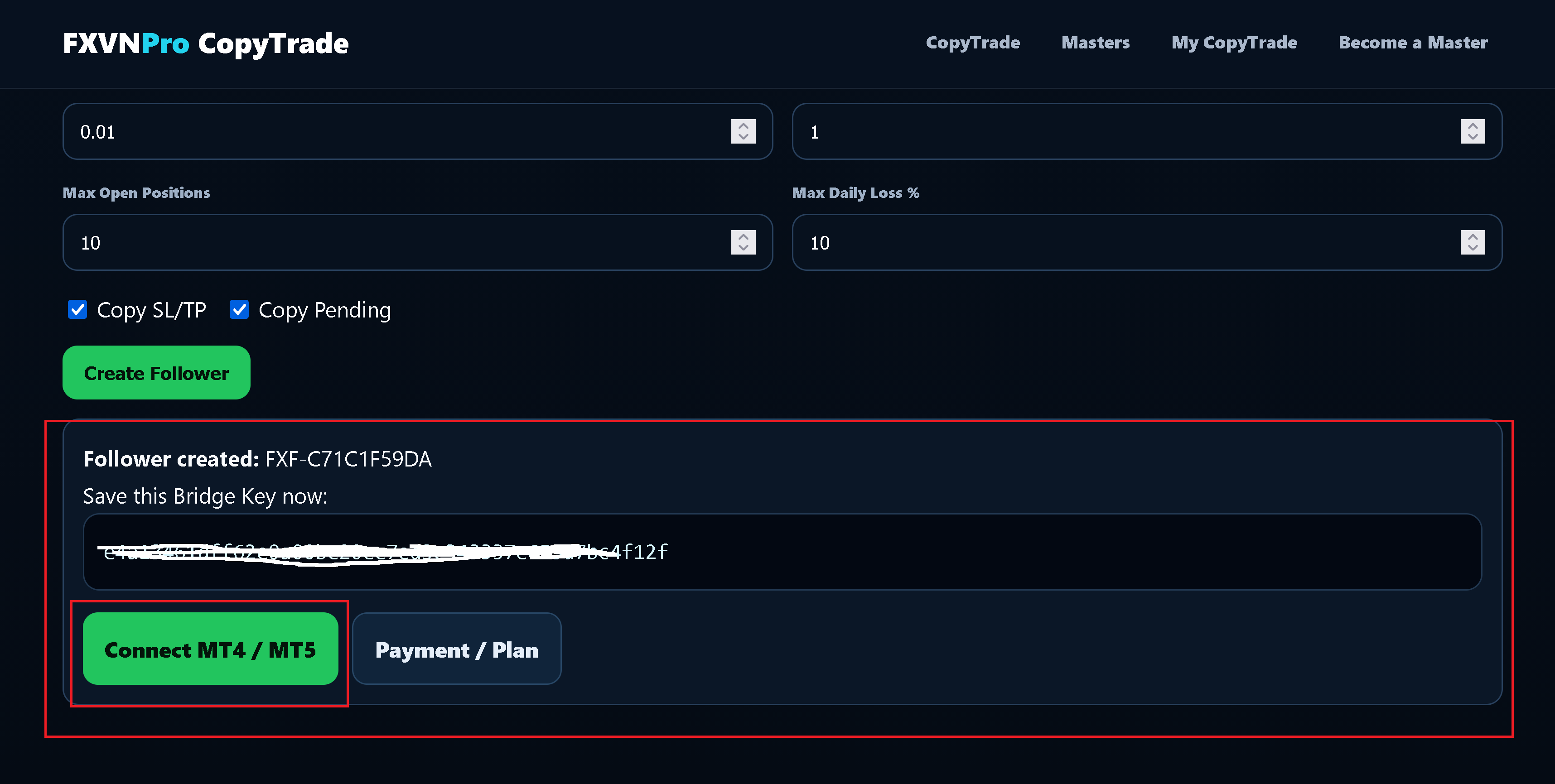
Choose Connect MT4 / MT5. FXVN will show the installation sequence and the EA inputs required for this Member connection.
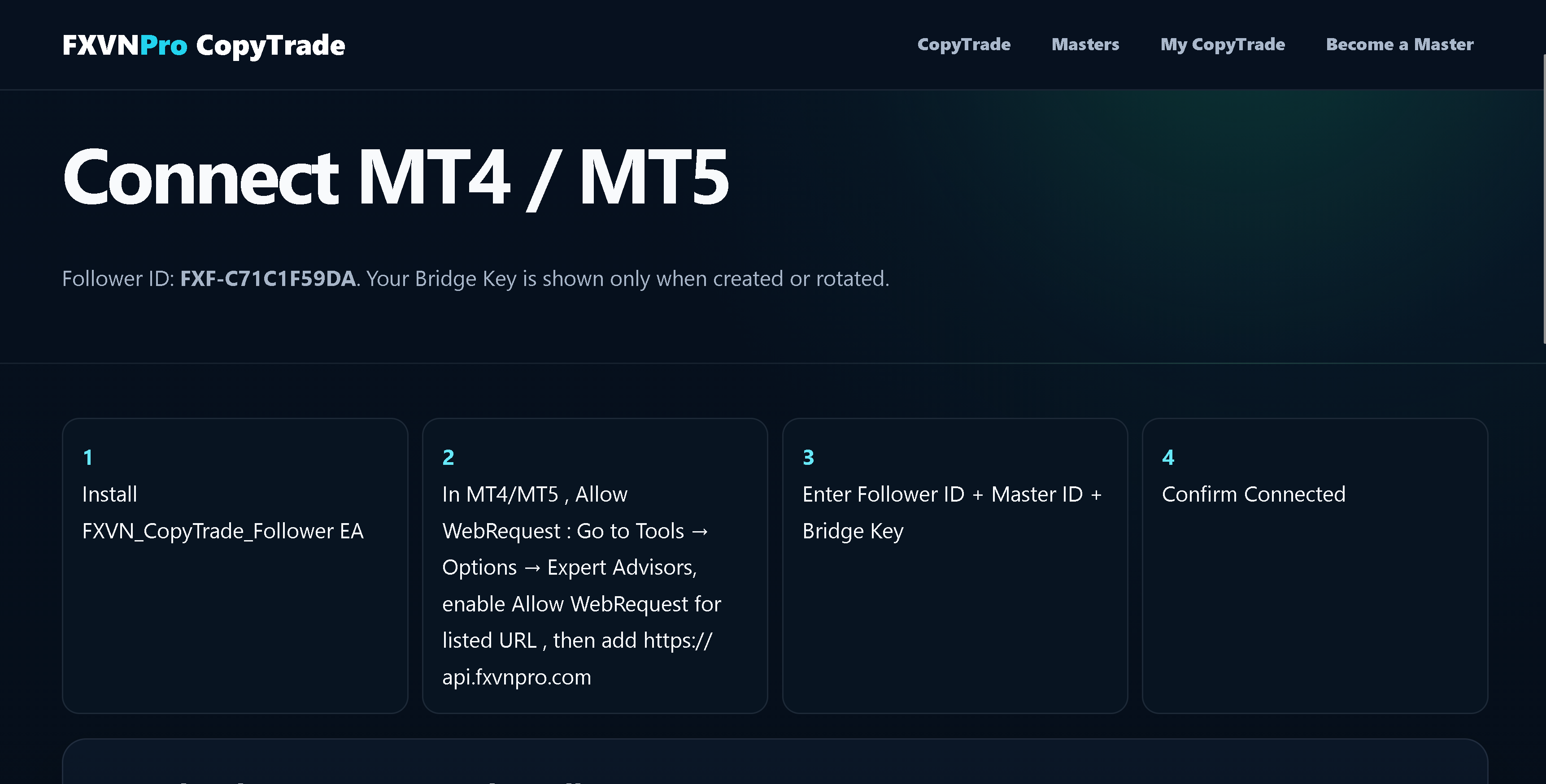
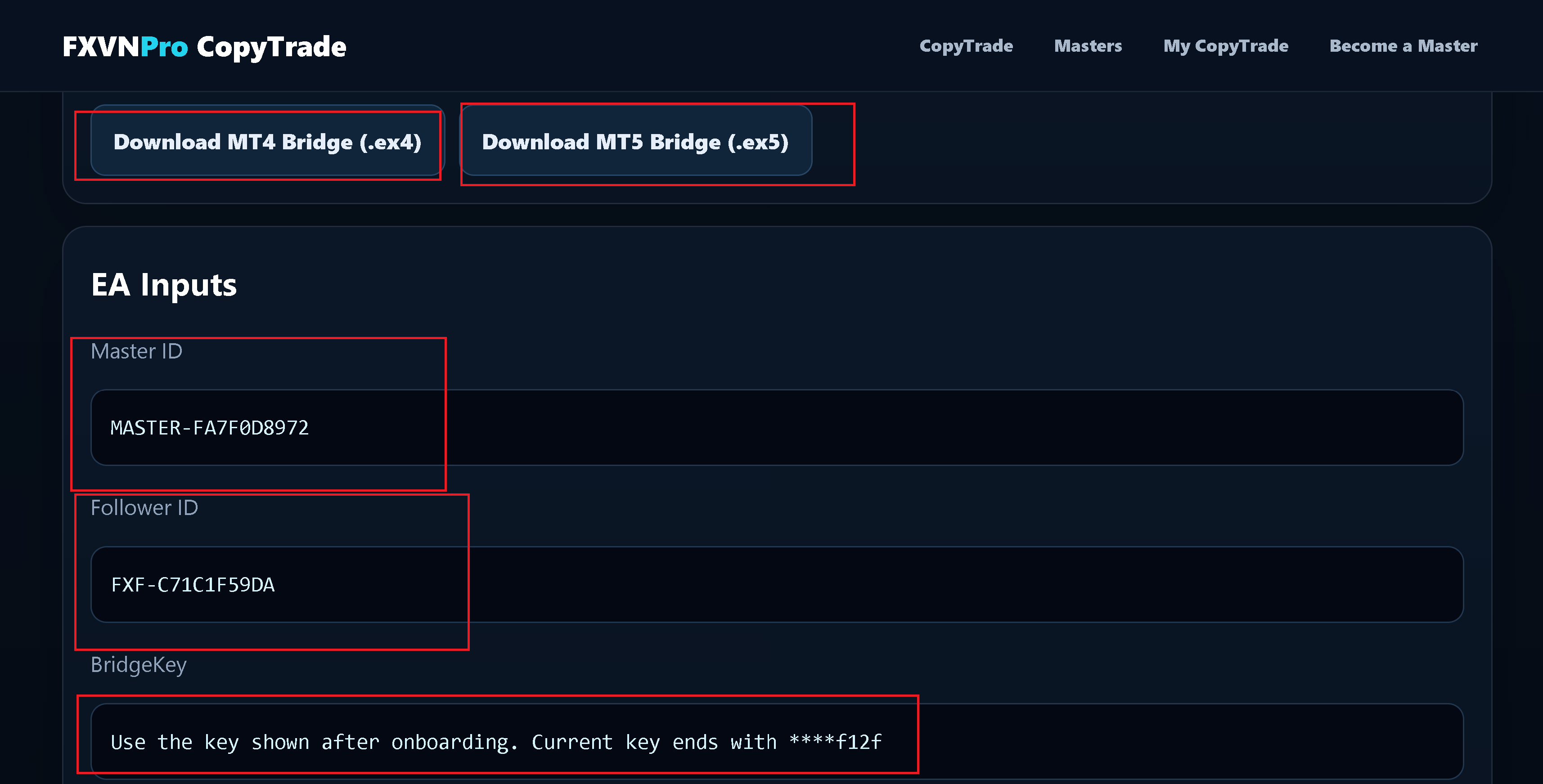
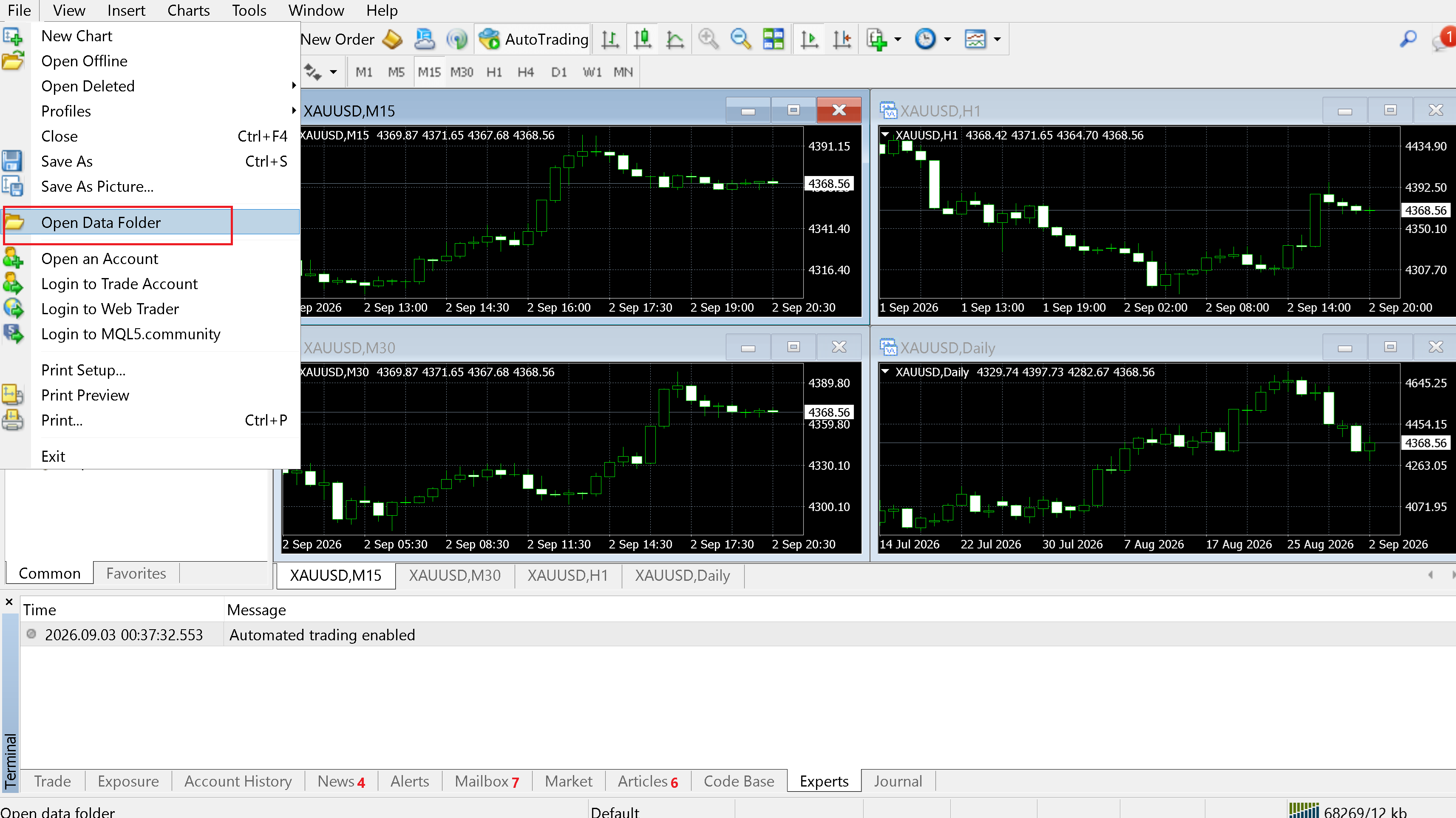
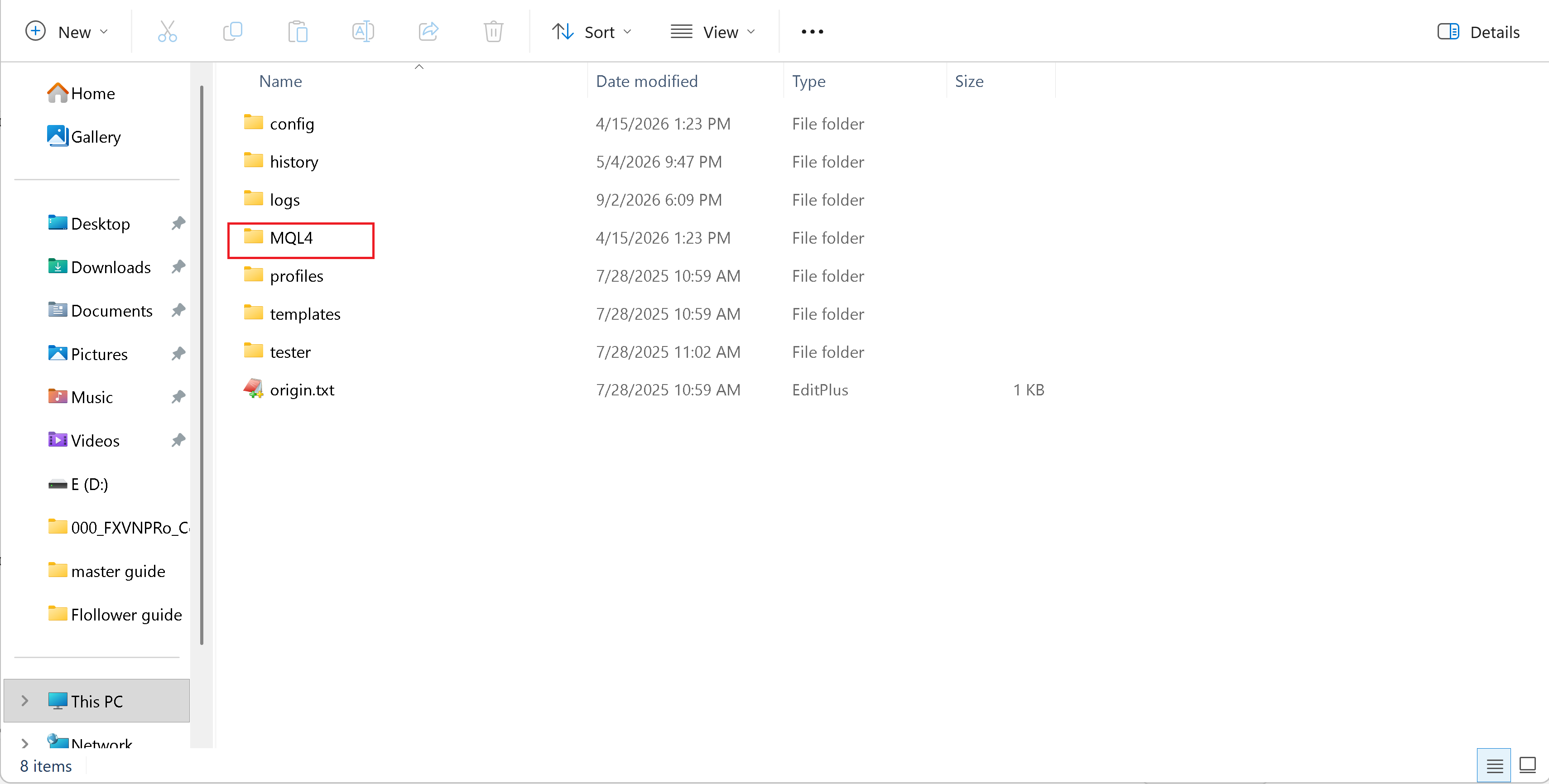
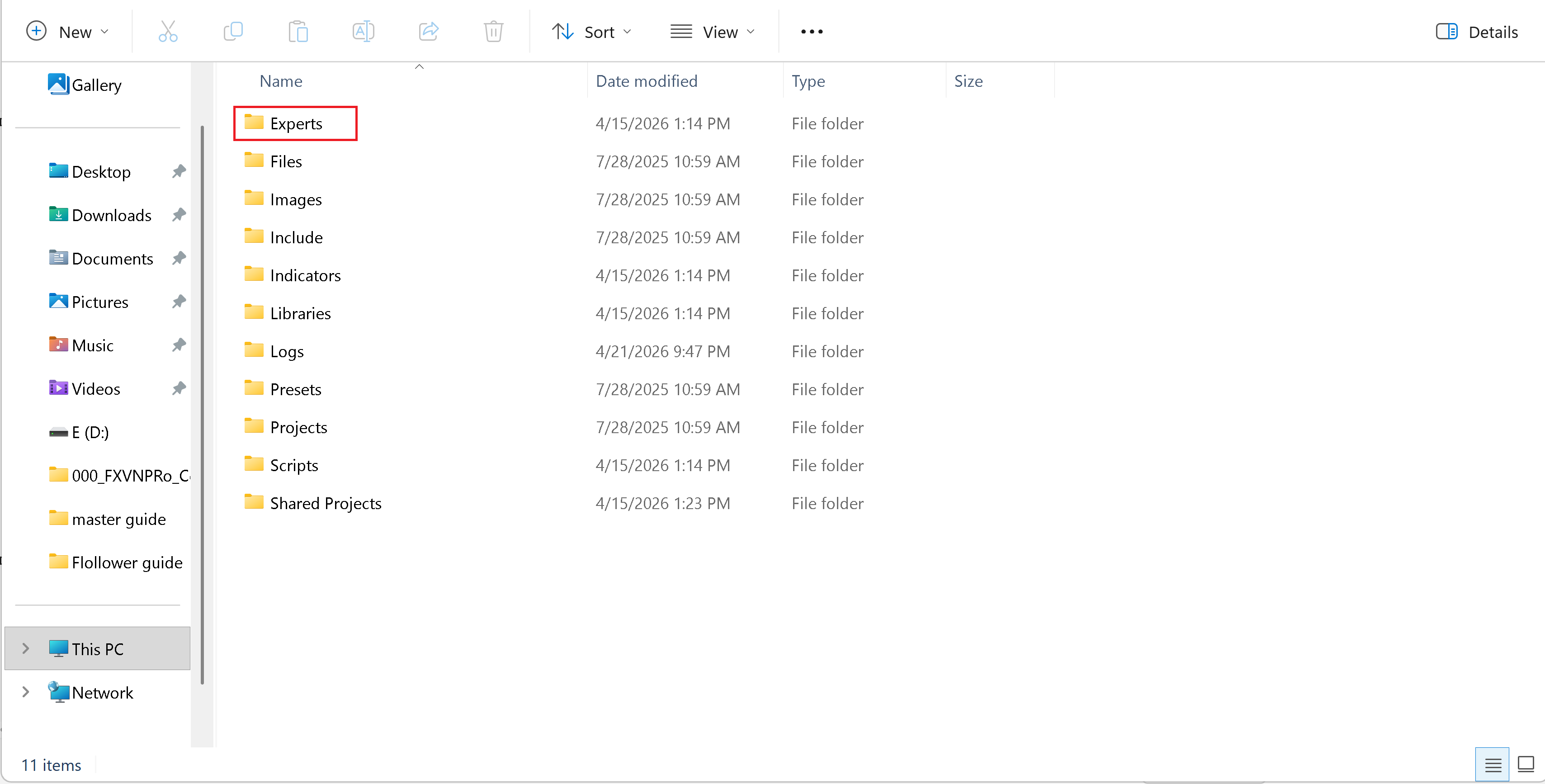
In MetaTrader choose File → Open Data Folder. Open the appropriate MQL directory, then the Experts folder, and place the downloaded FXVN Member Bridge there.
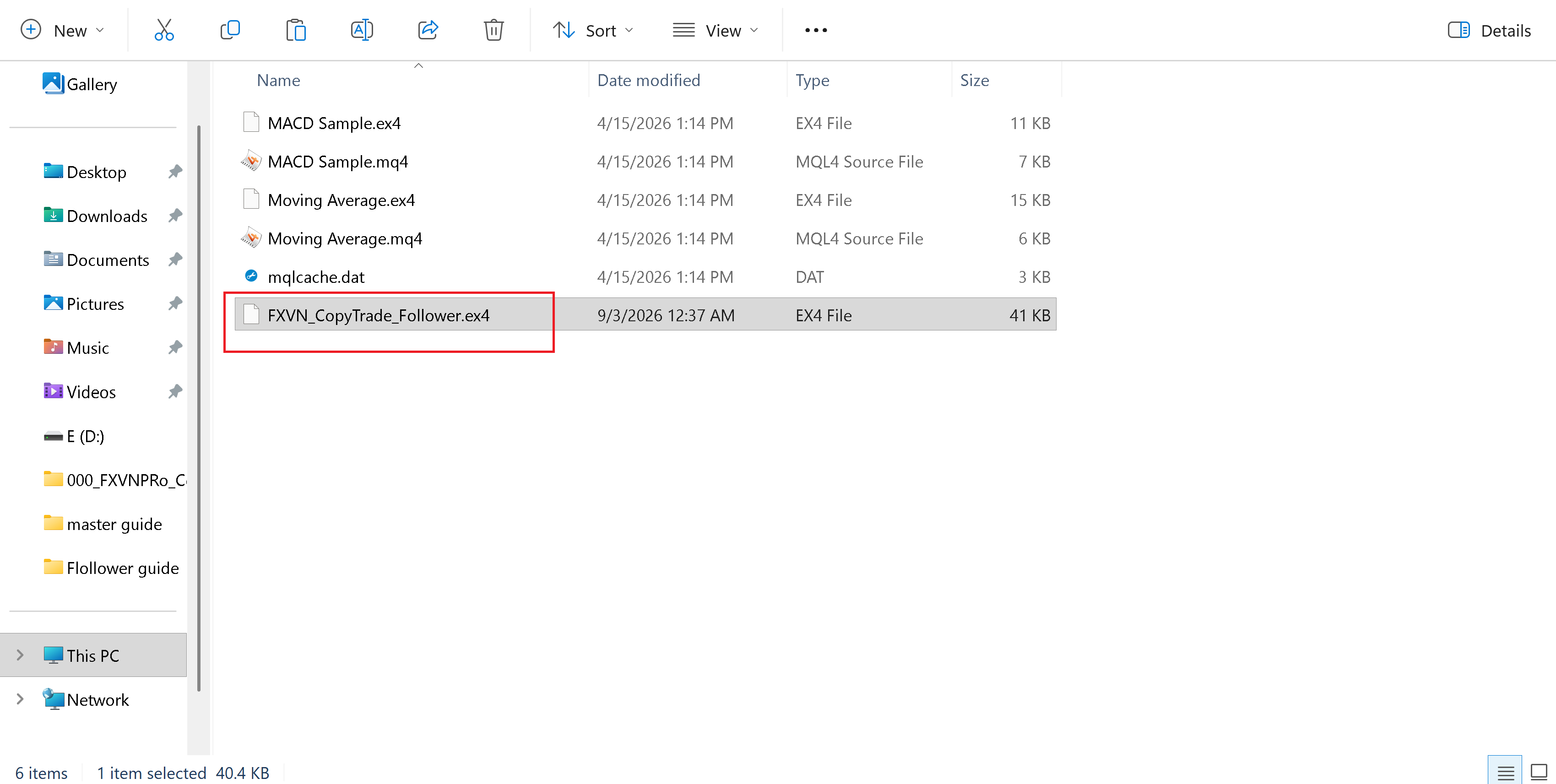
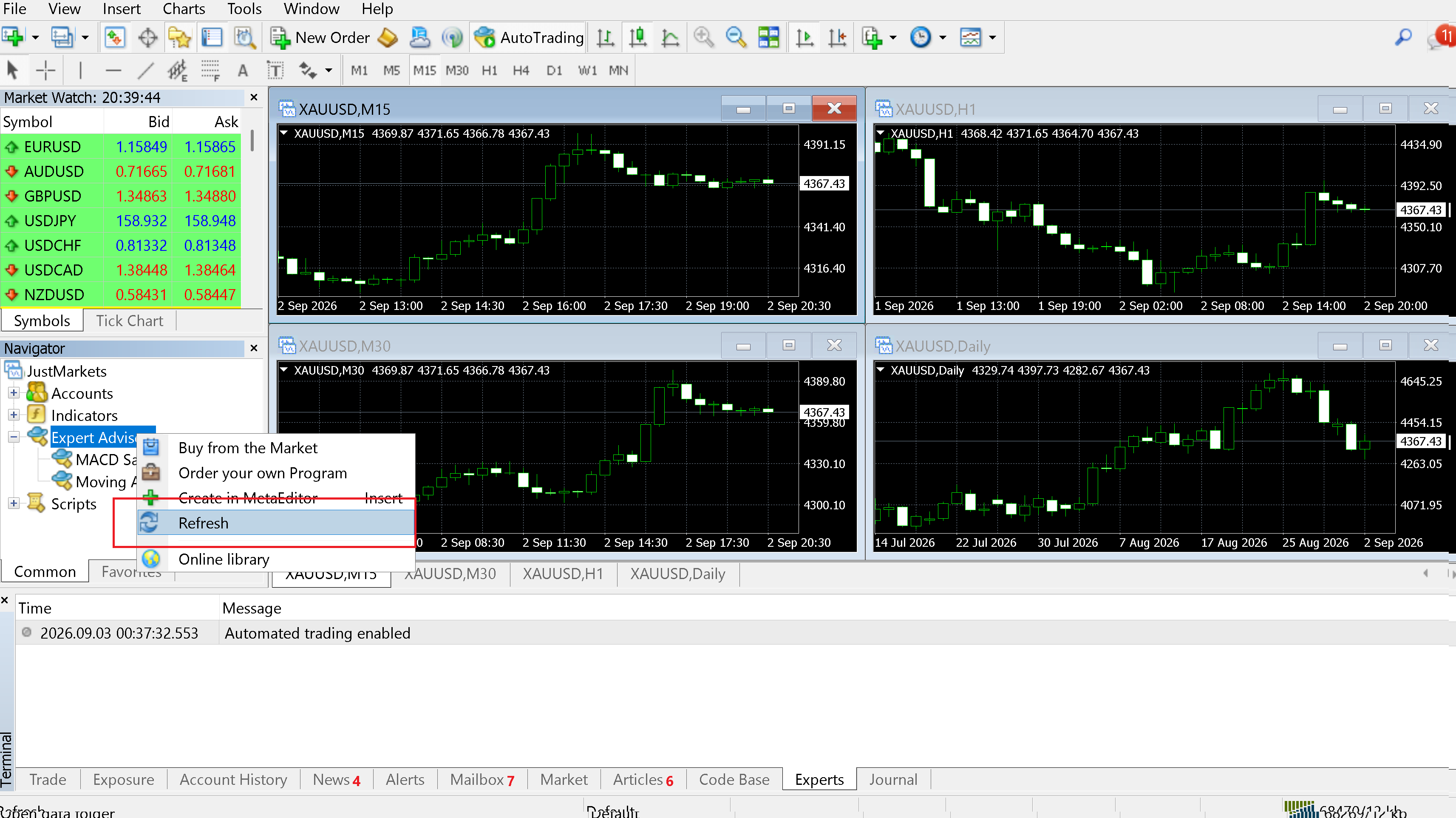
Return to MetaTrader, refresh Trading Programs (Expert Advisors) if needed, and attach the FXVN Member Bridge to a chart. Enter the Member connection values shown on the FXVN website.
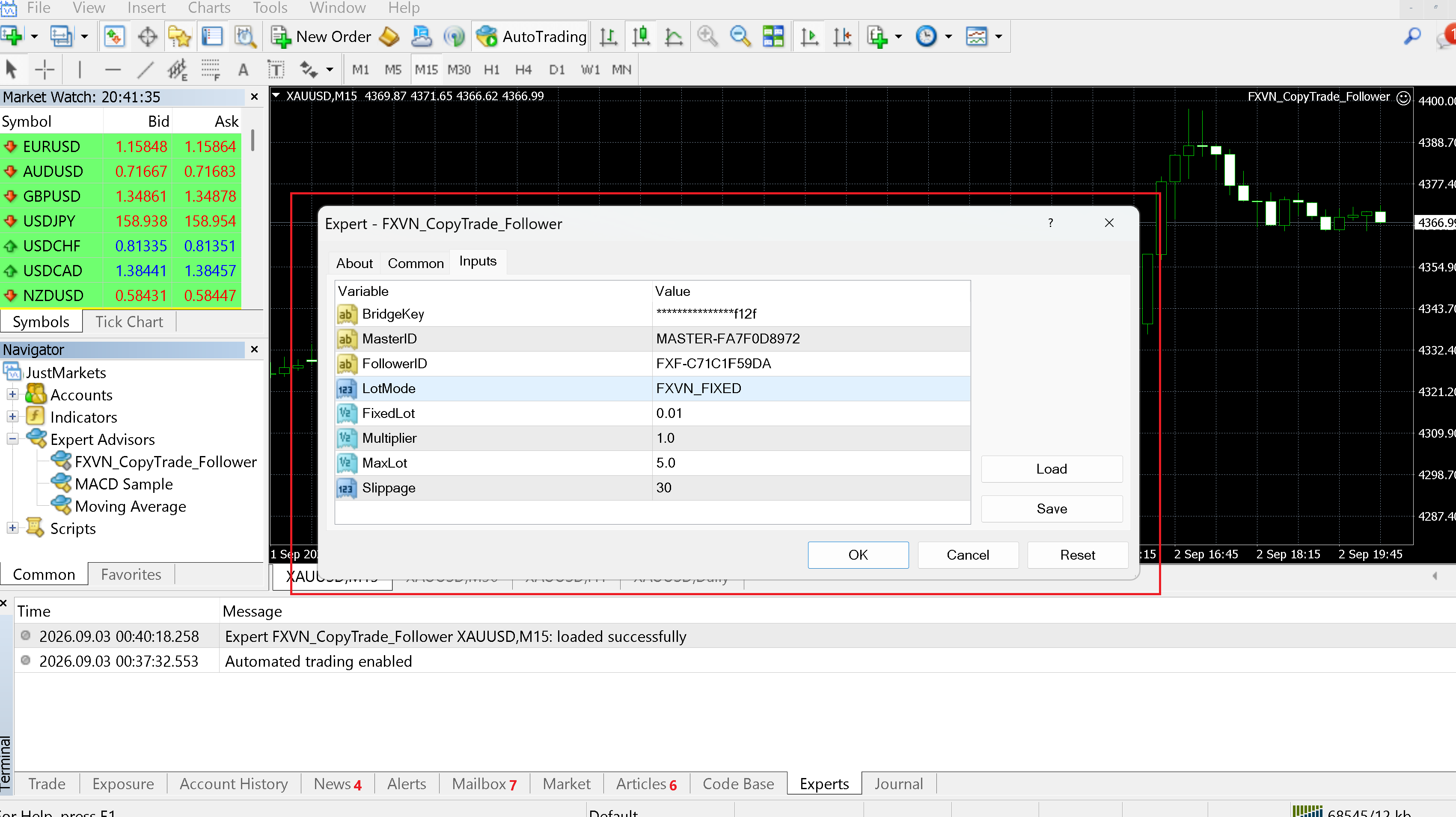
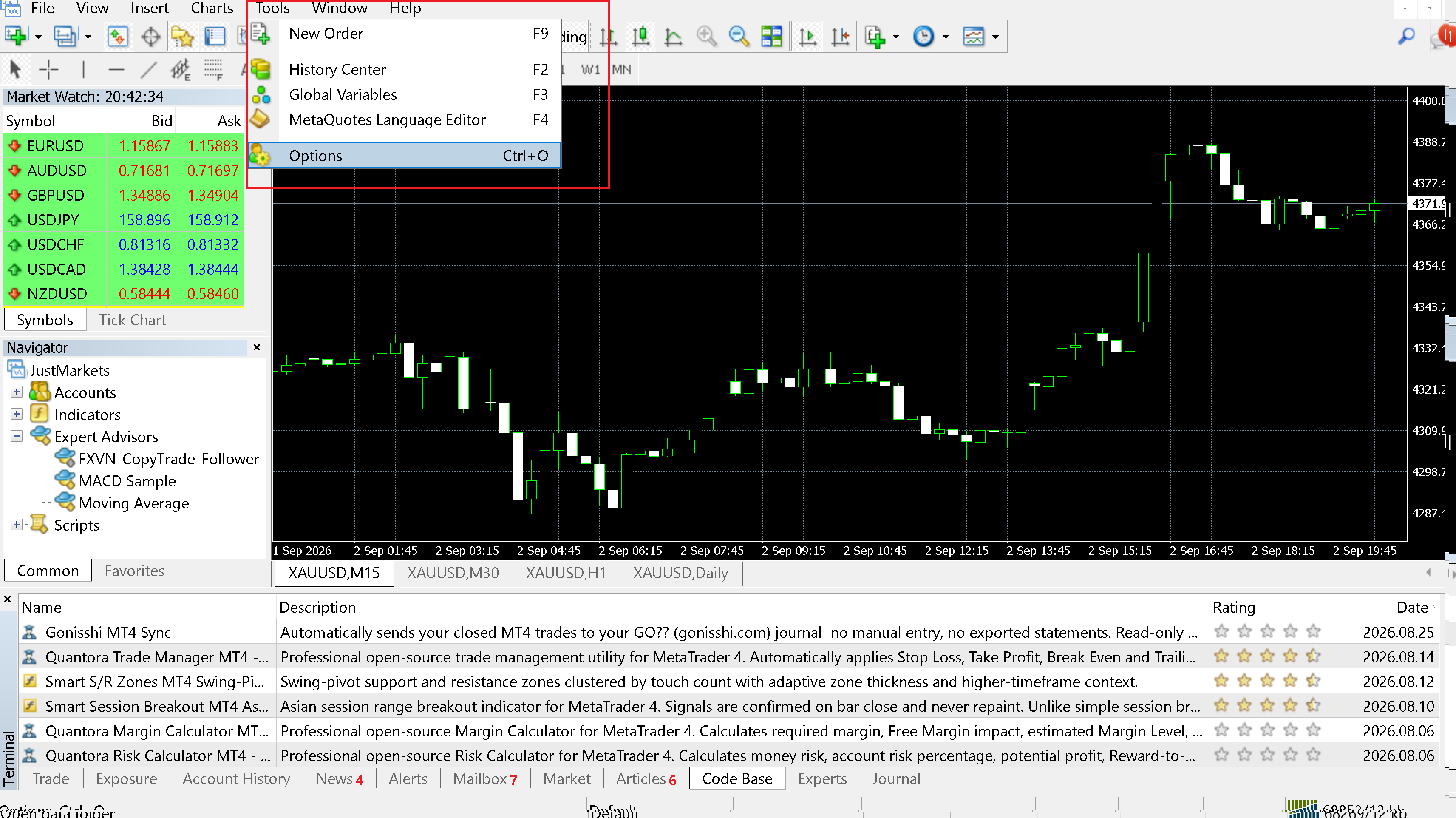
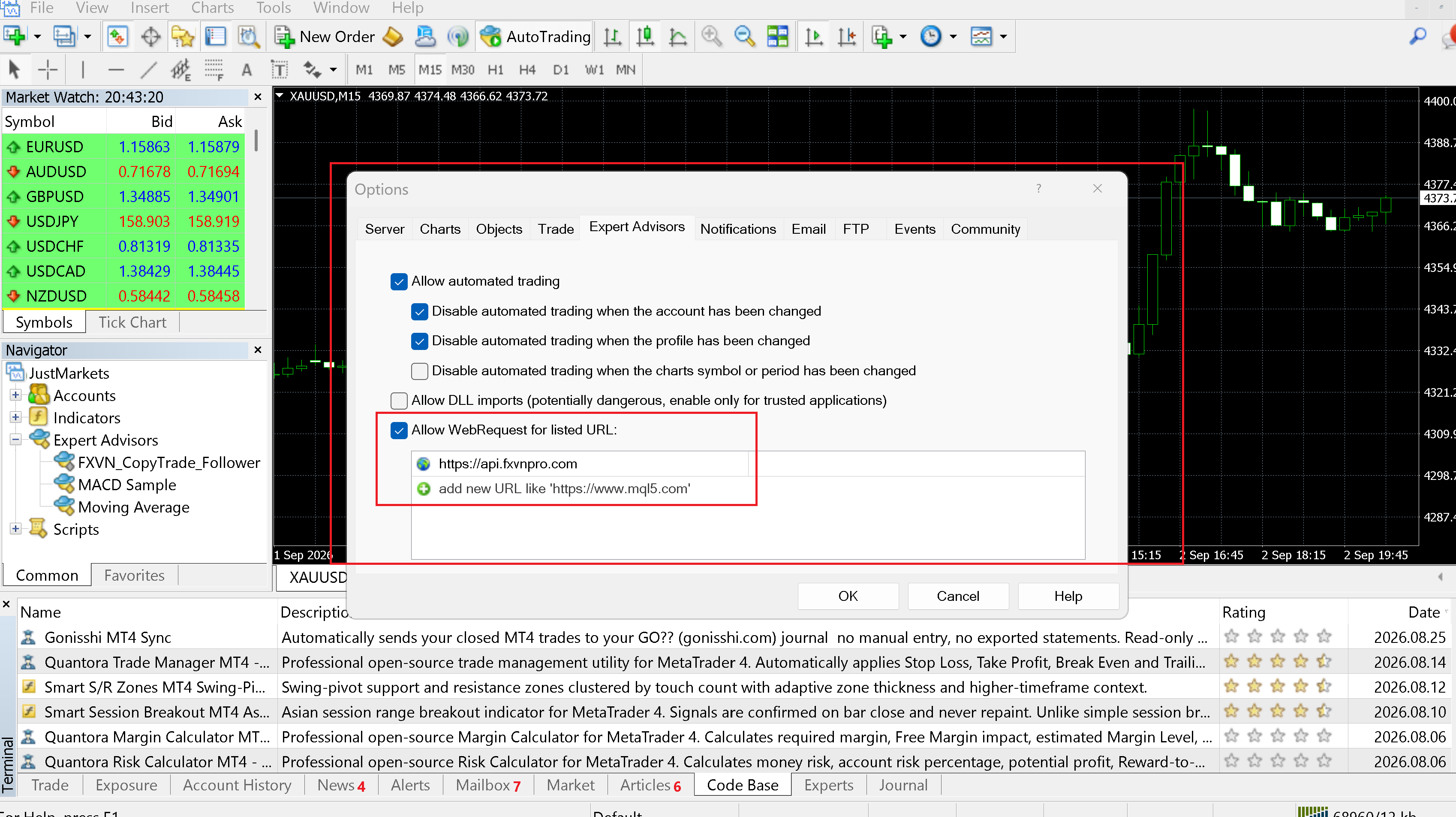
Enable automated trading for the EA. In MetaTrader options, Allow FXVNPro Connection and add the FXVN API URL displayed on your FXVN connection page.
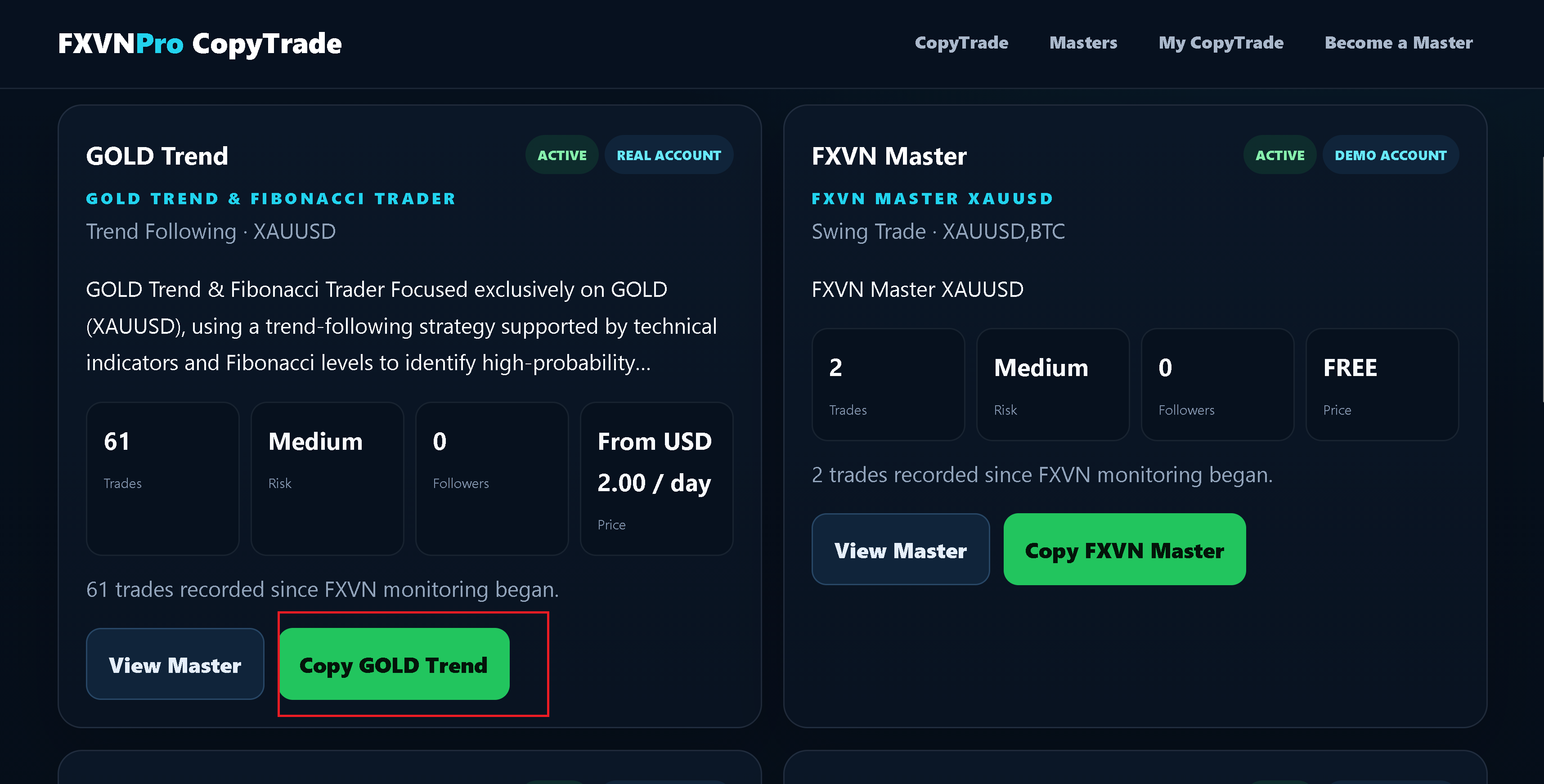
Return to the TRADER Marketplace and choose the TRADER you want to copy. Confirm that your Member is available and connected before continuing.
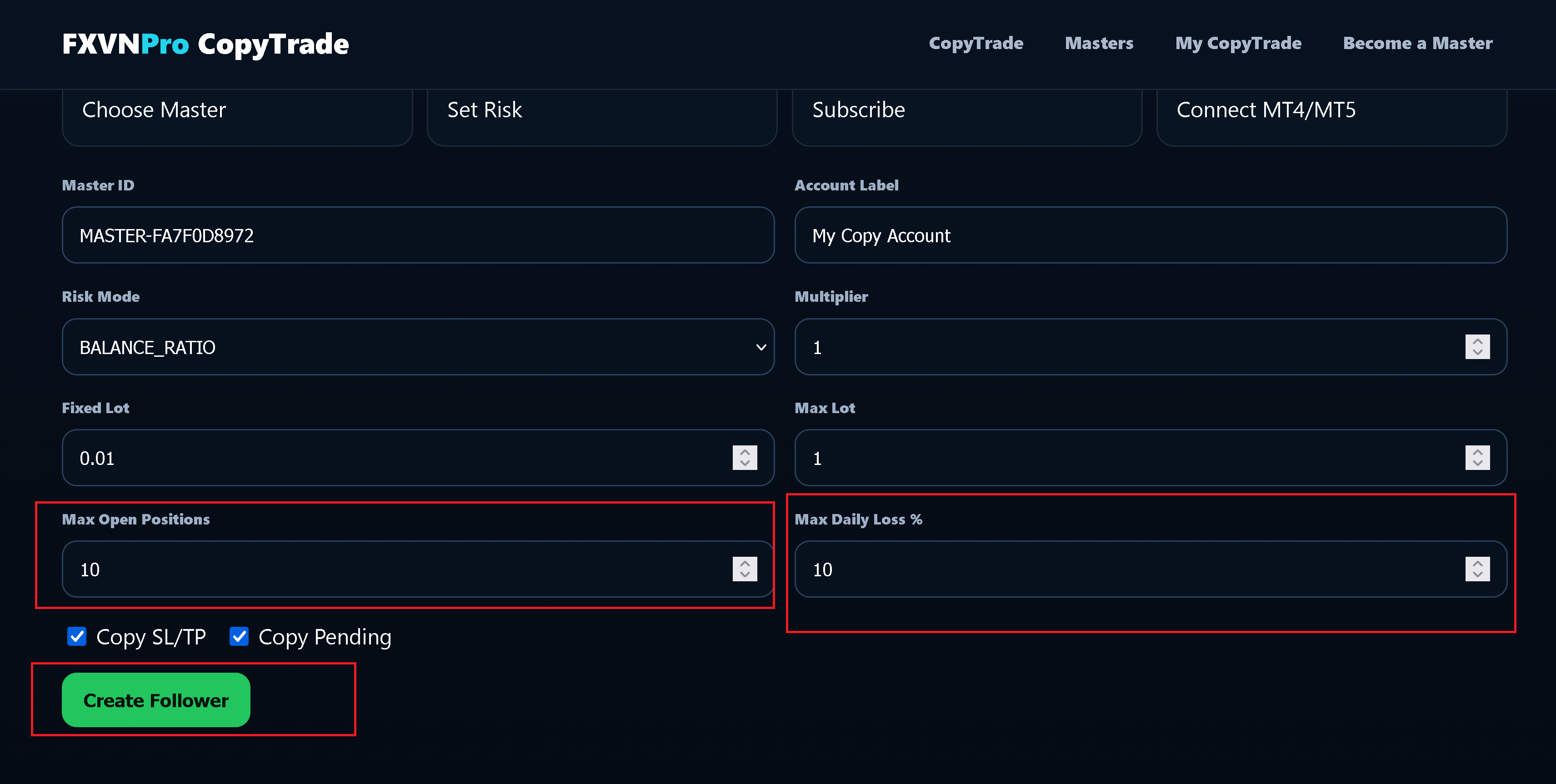
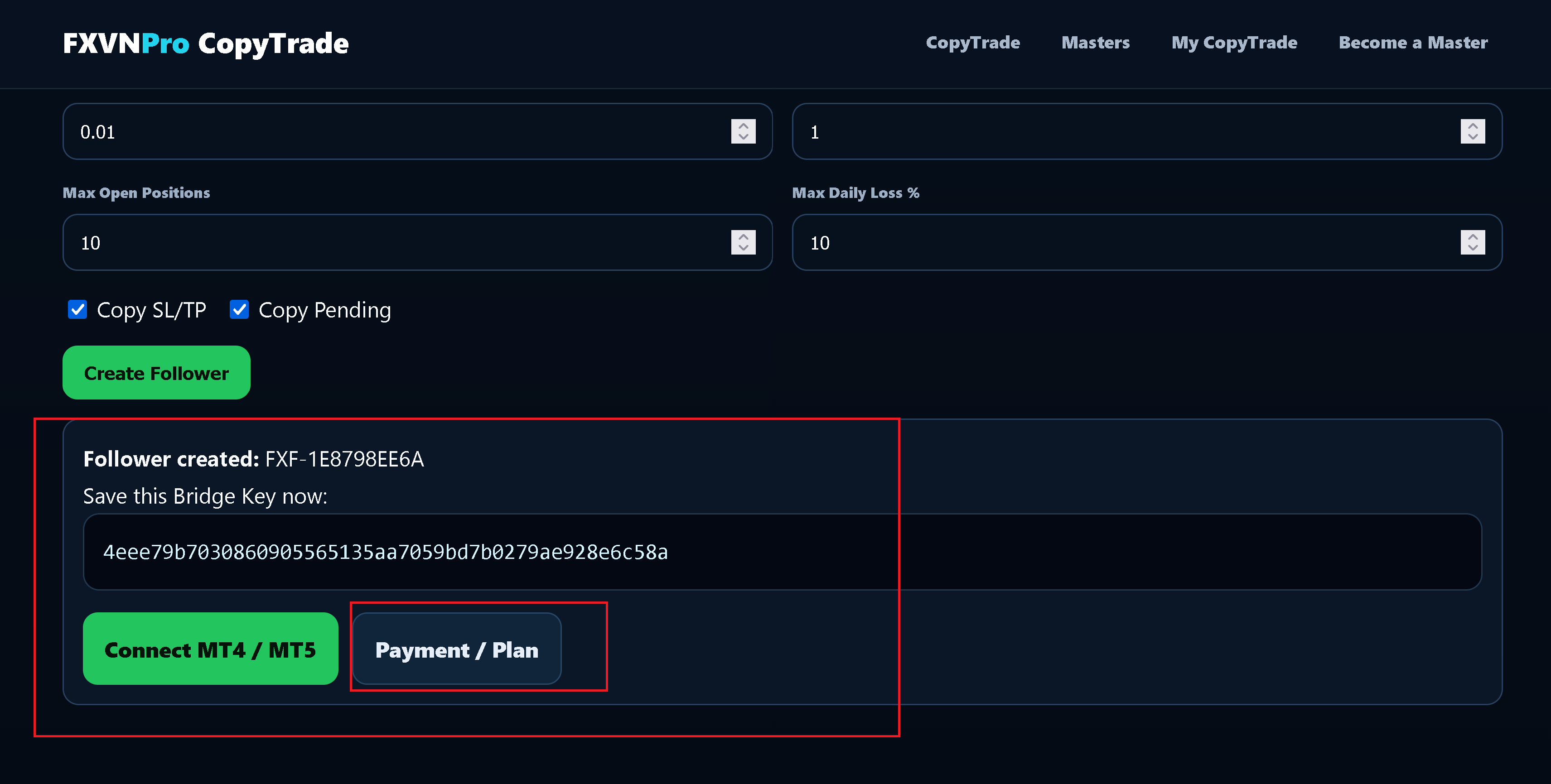
Select one of the plans offered by the TRADER. The exact Daily, Weekly or Monthly price depends on that TRADER's current offer.
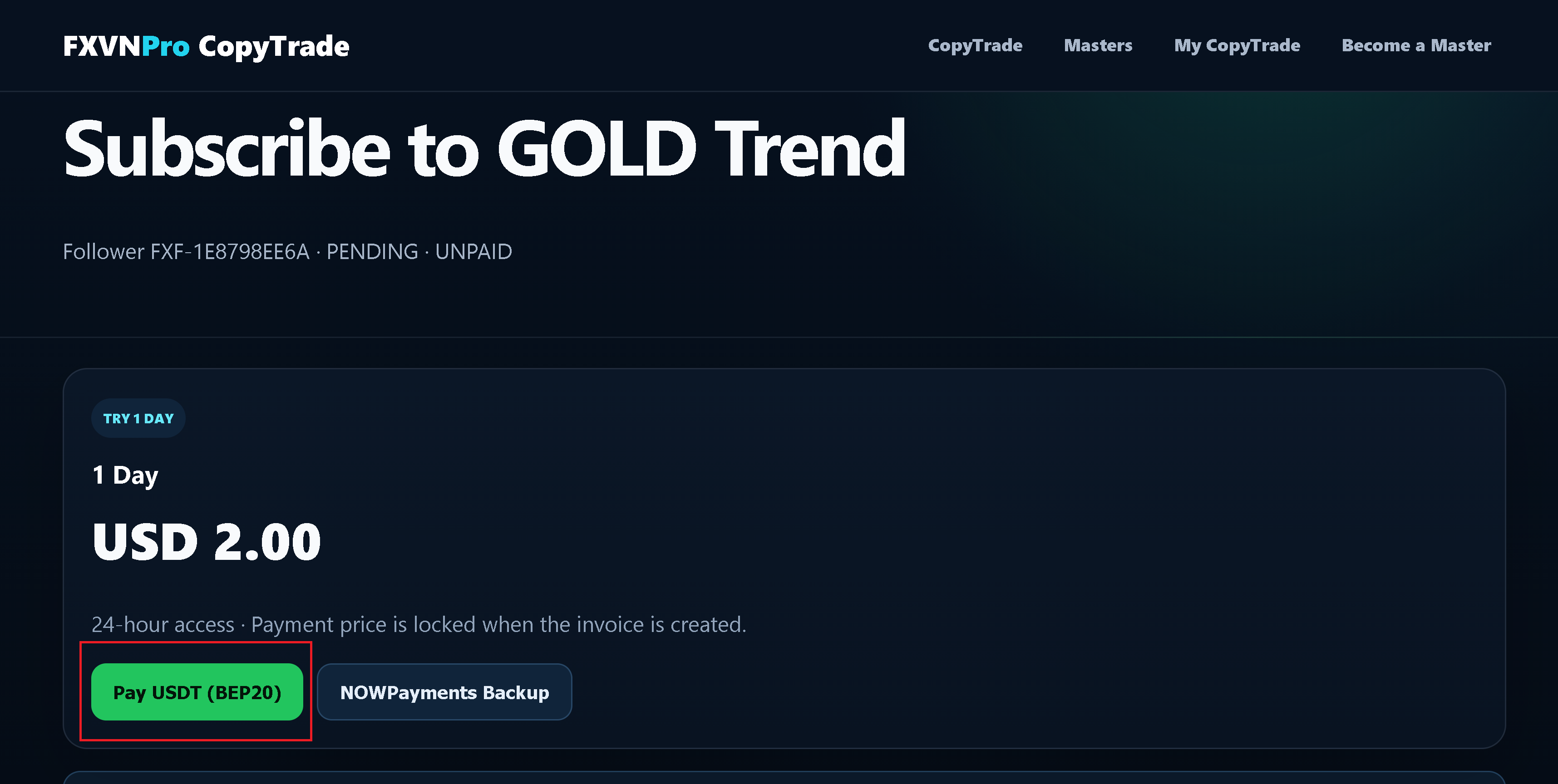
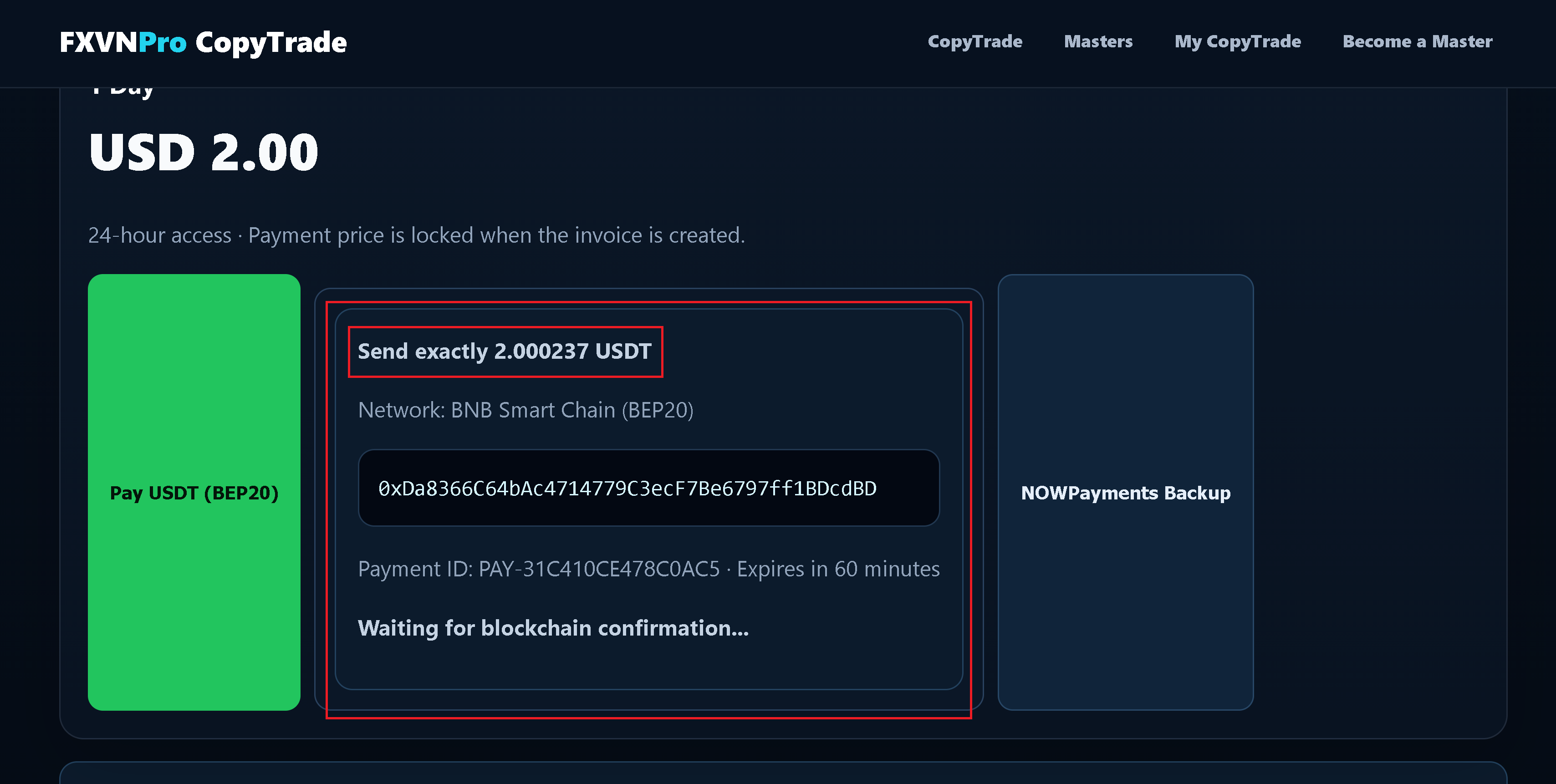
Follow the payment instructions shown on the checkout screen. Send the exact amount using the displayed payment method/network and wait for payment confirmation. Once the subscription is active and the Member Bridge is connected, the account is ready to receive eligible copied trades.
Keep MetaTrader and the Member Bridge running when you want the account to receive CopyTrade activity.
One real XAUUSD trade: created before the outcome, sent to Telegram, TRADEd in MT5 and returned as a verified result.
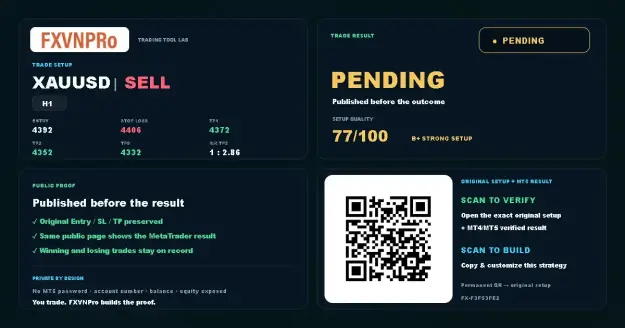 1 · SETUP
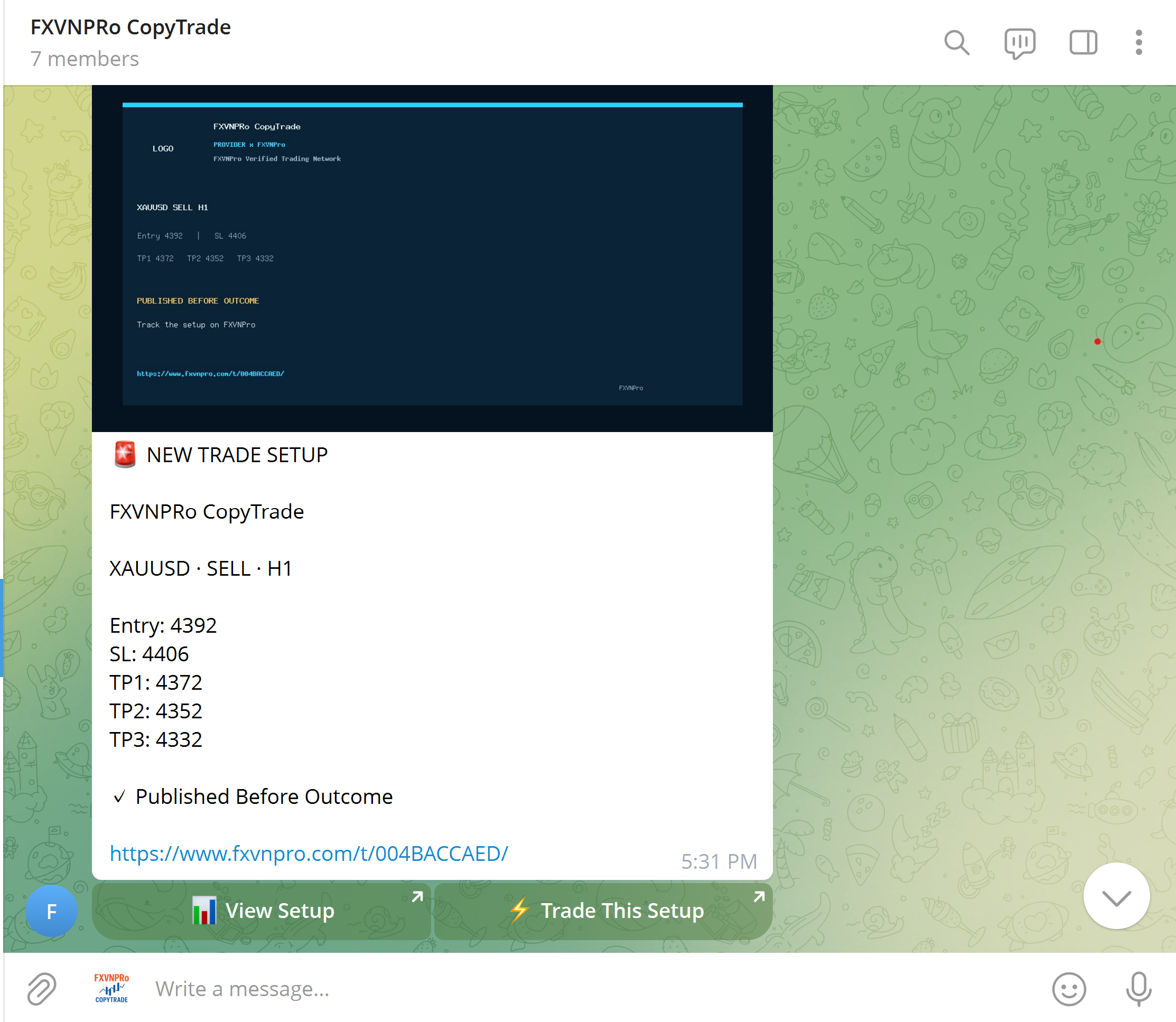 2 · TELEGRAM
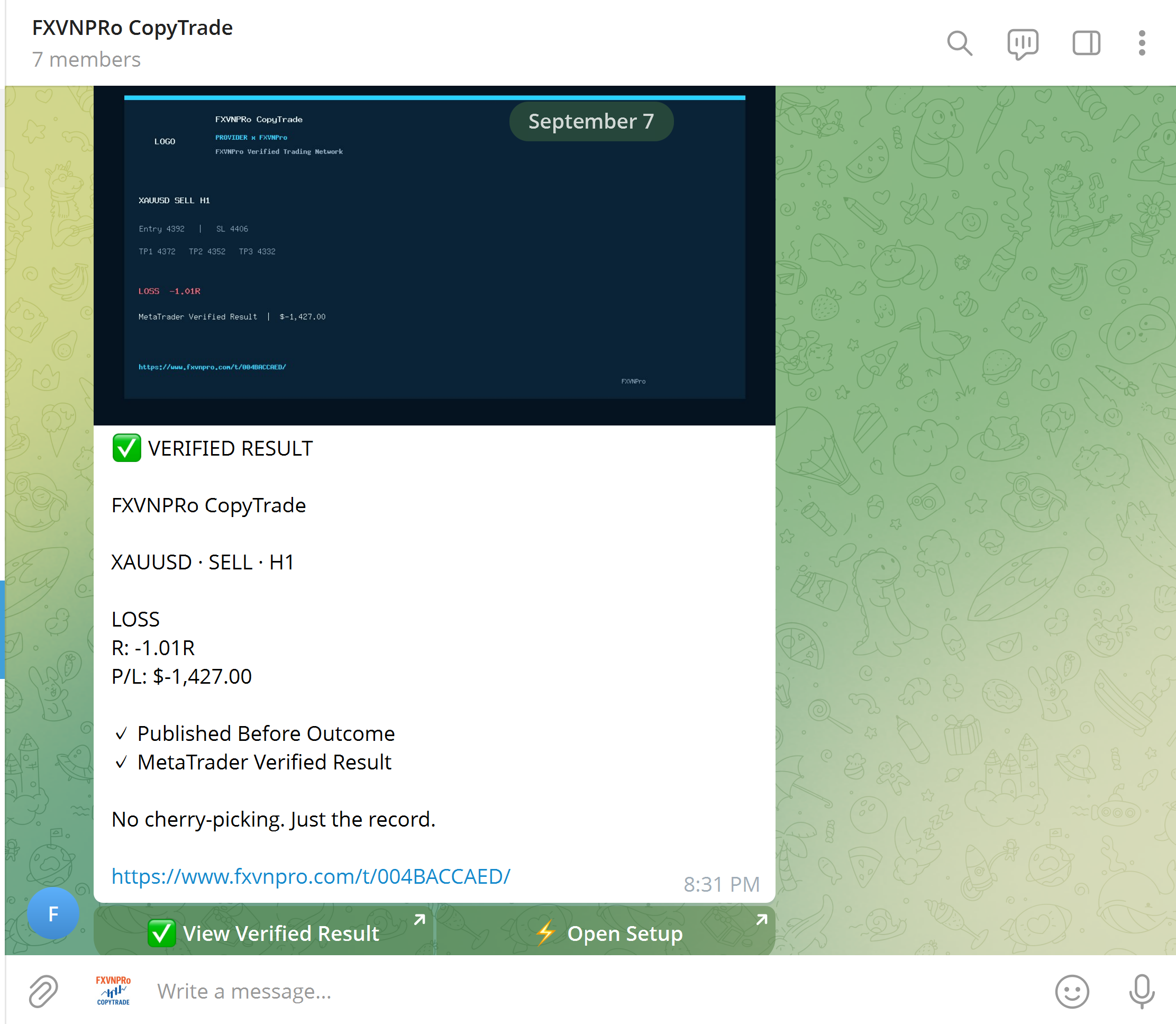 3 · VERIFIED
Build your strategy, USE TELEGRAM it to a community, or follow trading activity across MT4 & MT5.
Create Entry, Stop Loss and Targets before the outcome, then build a verified trading record.
Turn Telegram signals into an simple trade flow while Members keep control of their own risk.
Connect Chrome to MT4 or MT5 and open, modify or close trades from your browser.
Explore TRADERs and copy trading activity to your own MT4 or MT5 terminal with risk settings you control.
 GUIDE
GUIDE